Enter additional QR information in the “Notes” field
Automatically translated
In the DeepO settings, you can configure the app to automatically import additional information from a receipt’s QR code into the “Notes” field.
The setting “Write QR additional information to the ‘Notes’ field” can be configured on three levels, which are inherited from one another.
How does this feature work?
If this setting is enabled, DeepO reads the additional information contained in the QR code and automatically enters it into the “Notes” field. This happens without any manual effort.
Where is this setting enabled?
The settings can be configured at three levels that build on one another hierarchically:
- Organization: Under Organization Settings, the default value for all boxes in the organization is set (e.g., “Enabled for all boxes”).
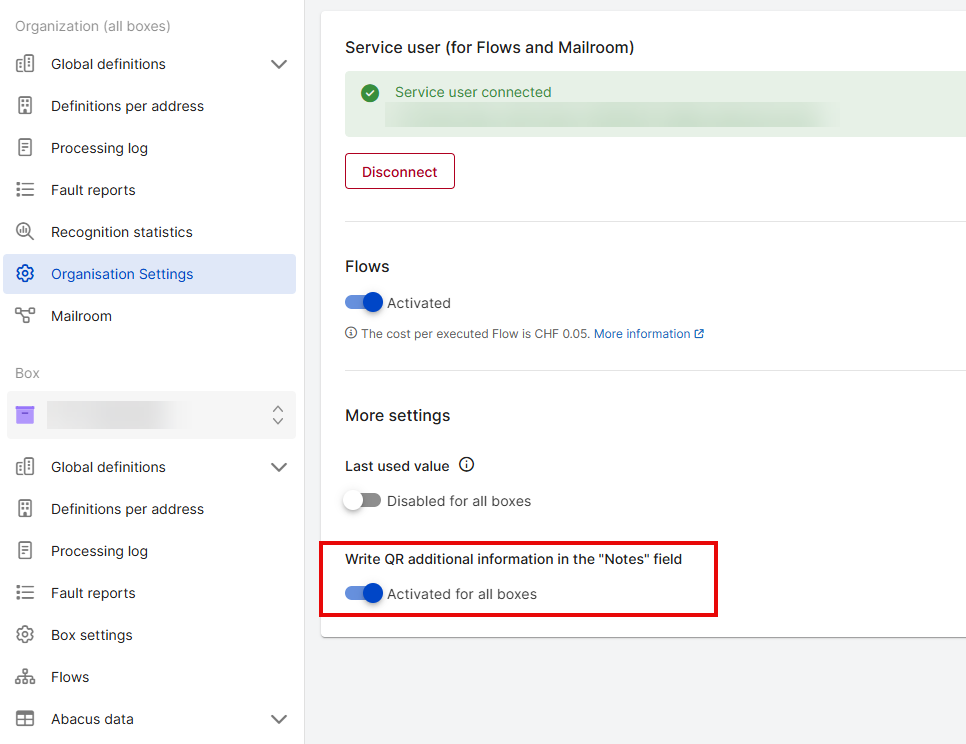
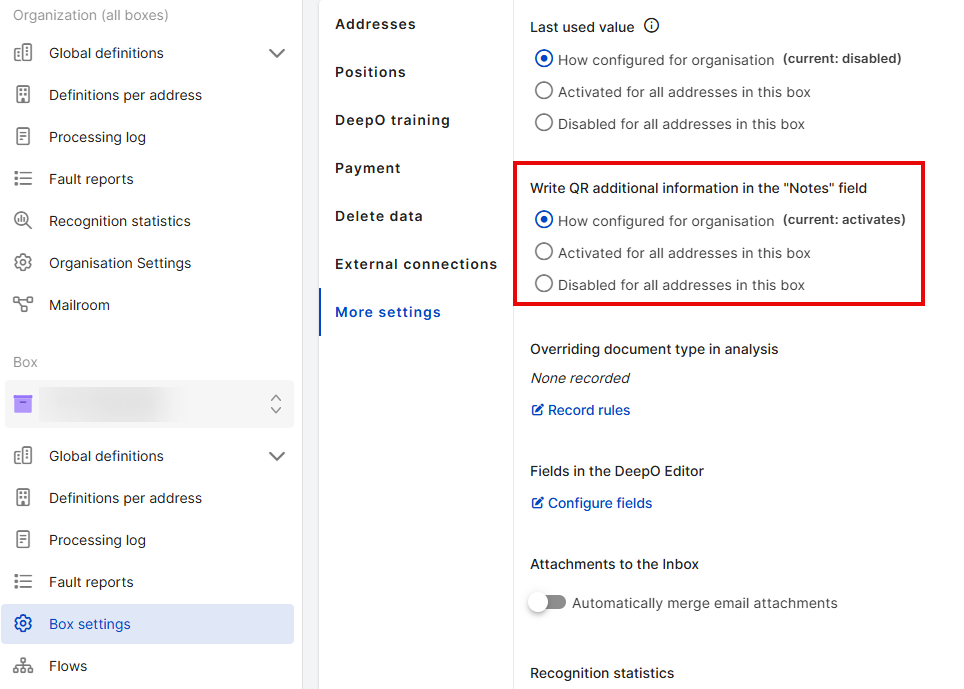
- Box: Under Box Settings → Additional Settings, you can choose for each box whether to apply the organisation’s settings (“As configured at the organisation level”) or to enable or disable the setting individually for all addresses in that box.
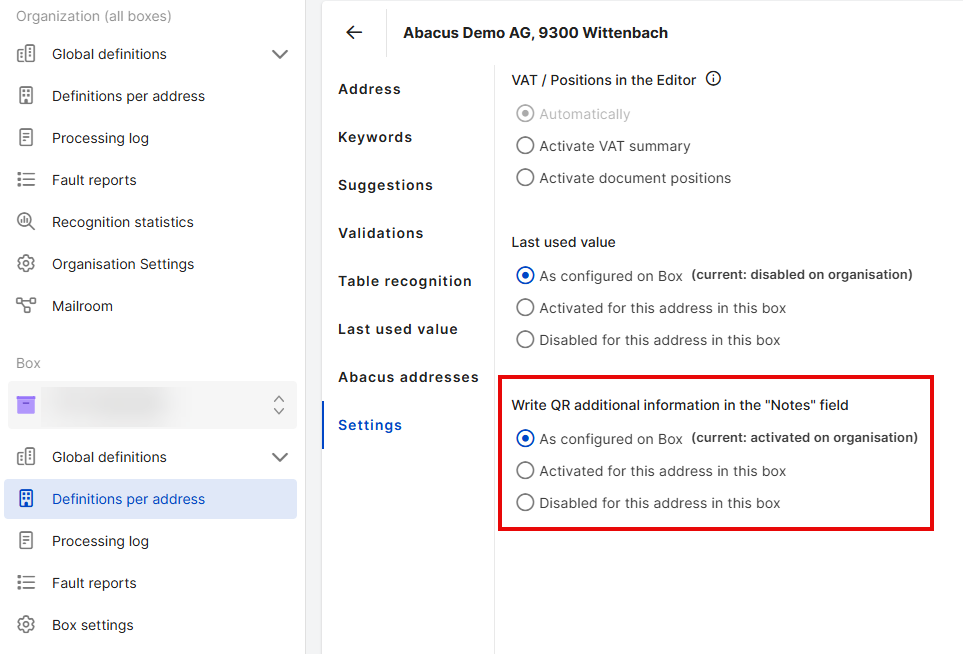
- Address: Under ” Definitions per Address” → “Settings,” you can override the setting for each address within a box. Here, too, you can choose between “As configured for the box” or individually enabling or disabling the setting for that address.
Important Information
- Once activated, the additional information stored in the QR code is automatically transferred to the note field.
- Inheritance occurs from the organisation through the box to the address—a setting at a lower level overrides the higher-level setting.
Note: If a receipt’s QR code does not contain any additional information, the note field will remain blank.
Did this answer your question?
Related articles
Train DeepO
All fields in the DeepBox can be filled manually. The “Train DeepO” function can be used to automate the filling of the fields. Activation To be able to use the ...
Attachments to inbox (automatically merge e-mail attachments)
Prerequisites Furnishings Generate address for this inbox Activate DeepFlow Activate attachments to inbox Execution If an email containing an invoice with multiple PDFs is sent to ...
Activation Mailroom & Flows
In order to use the Mailroom and DeepFlow functions, a service user with connection and access to the box must be created. 1. jump to the DeepO settingsTo do this, go to the DeepO ...