Navigation and recording in position fields

Automatically translated
In the DeepO Editor, values within the items can also be entered or corrected manually. The following tips will help you to navigate efficiently through the fields and enter data quickly.
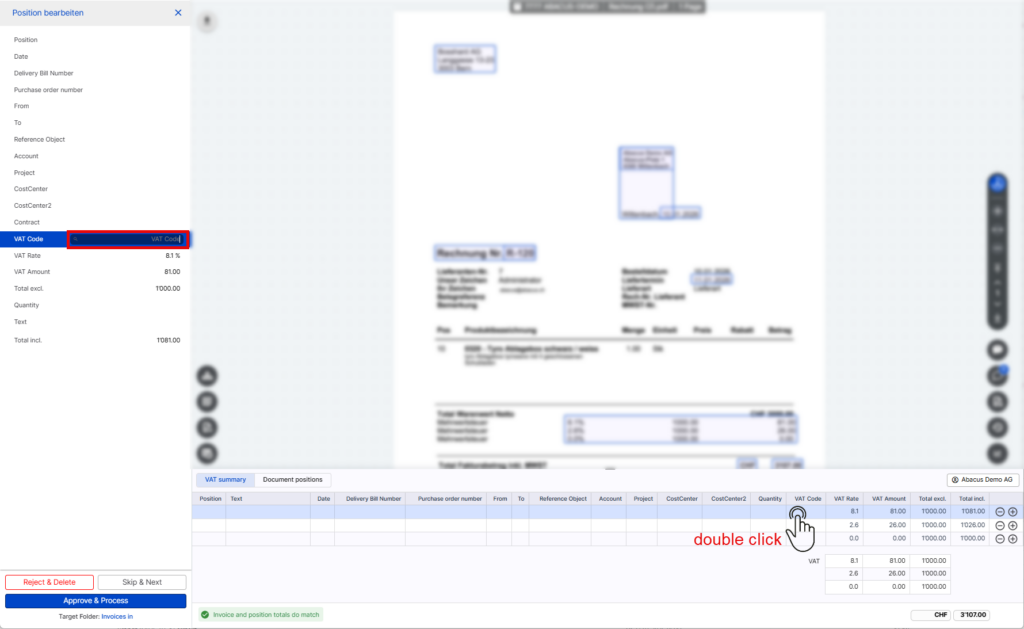
Double-click on a position field
Double-click on a field in the items to open the detail panel on the left-hand side with all the fields for the corresponding item.
- The field on which you double-clicked is automatically focused.
- You can easily switch to the next field using the tab key (Tab).
- If you press the tab key again in the last field of the panel, the panel automatically switches to the next position.
Single click on a position field
Simply click on a field in the items to open the panel on the left-hand side with all the fields for this item. No field is automatically focused.
- The values can be selected, adjusted or added to manually.
- You can use the tab key (Tab) to switch to the next field as soon as a field is selected.
- If you press the tab key again in the last field, the panel automatically switches to the next position.
Further tips for efficient recording and a better overview
- Use a double-click if you want to start entering directly in a specific position field. To jump to the next field or position, use the tab key.
- Fields within the items can be shown or hidden as required in the box settings. Fields that are not required in your application therefore do not necessarily have to be displayed. This creates more space in the items and gives you a better overview when editing.
Did this answer your question?
Related articles
VAT summary / Activate document items
As of 26.02.2026, the two tabs “VAT” and “Positions” in the DeepO editor have been harmonized. Suggestions can now also be created in the VAT summary. Basic...

Recognize and activate document positions
Recognition positions By default, the VAT summary is used in the Advanced boxes. With this recognition, one item is created for each VAT rate recognized, regardless of the number ...
Standardised VAT and item workflow
The “VAT tab” in the DeepO Editor has been fundamentally revised and aligned with the “Positions tab”. Previously, only manual entries were possible in the ...