Problems with DeepBox Drive? Here’s what you can do
Automatically translated
Solution in most cases
In most cases, it helps to restart DeepBox Drive completely. You can do this as follows:
- Go to the DeepBox Drive icon in the taskbar

- Disconnect the connection


- Next, delete the bookmark


Note: If DeepBox is displayed multiple times, this means that you have created multiple bookmarks. This leads to conflicts during synchronization. Therefore, carry out this step for each bookmark. - Exit DeepBox Drive


- Now restart DeepBox
Synchronization does not work
If you have added new files but they are not synchronized, check the following settings:
- Is synchronization activated?
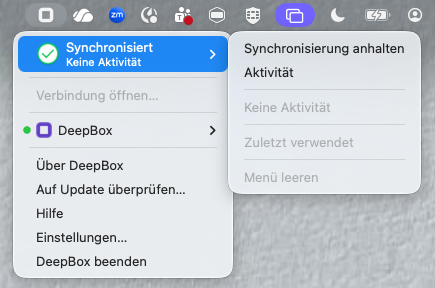
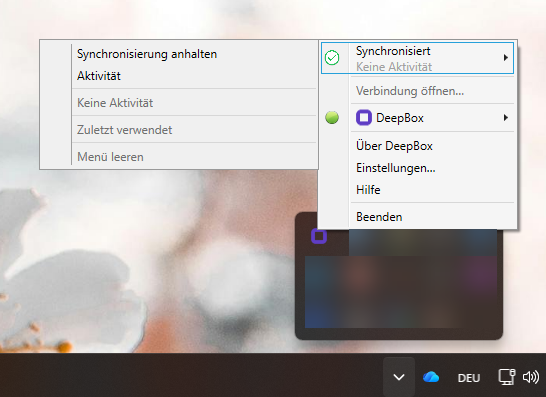
- Are there any open updates?

- Is the “Integrated” connection mode set correctly?
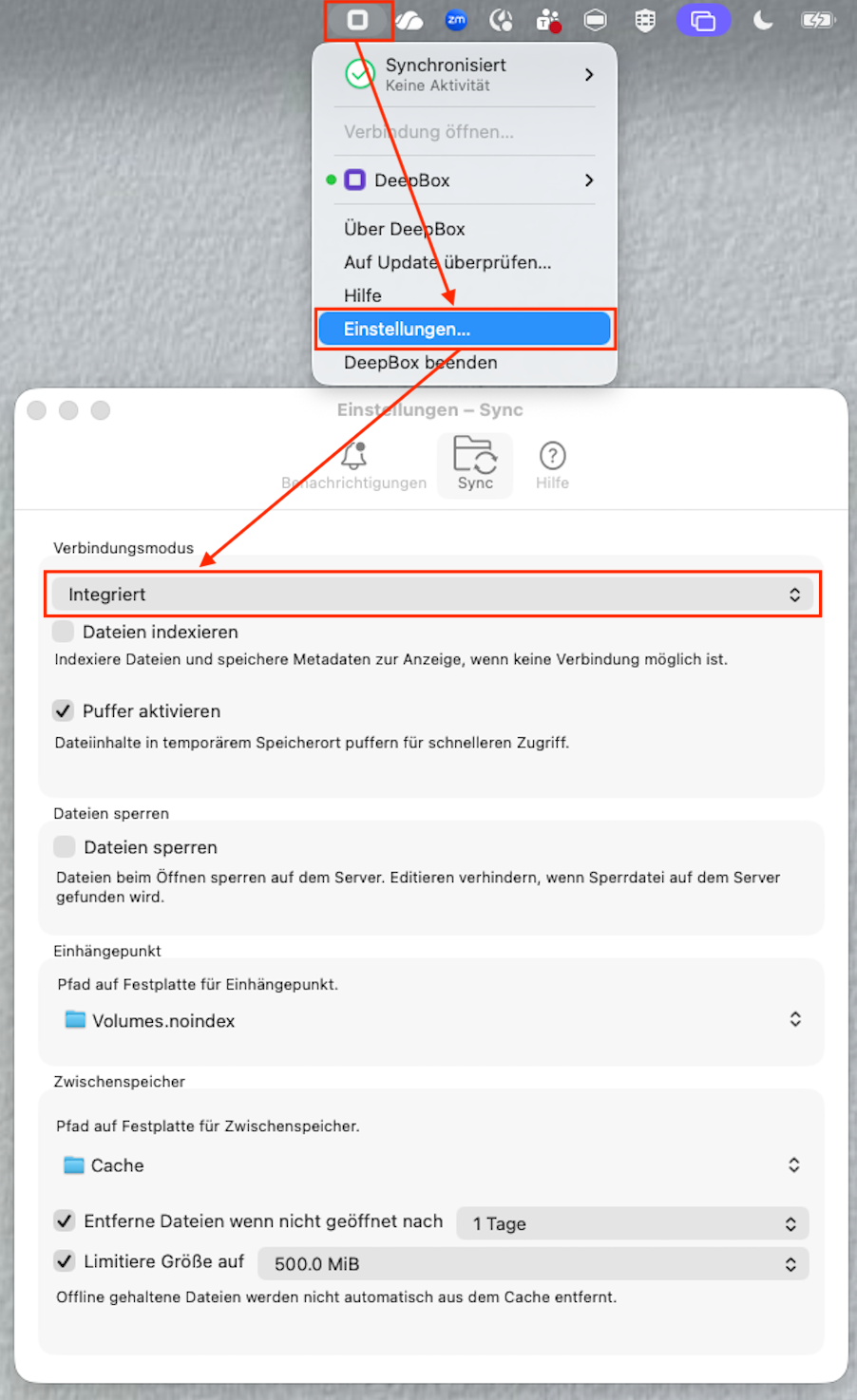
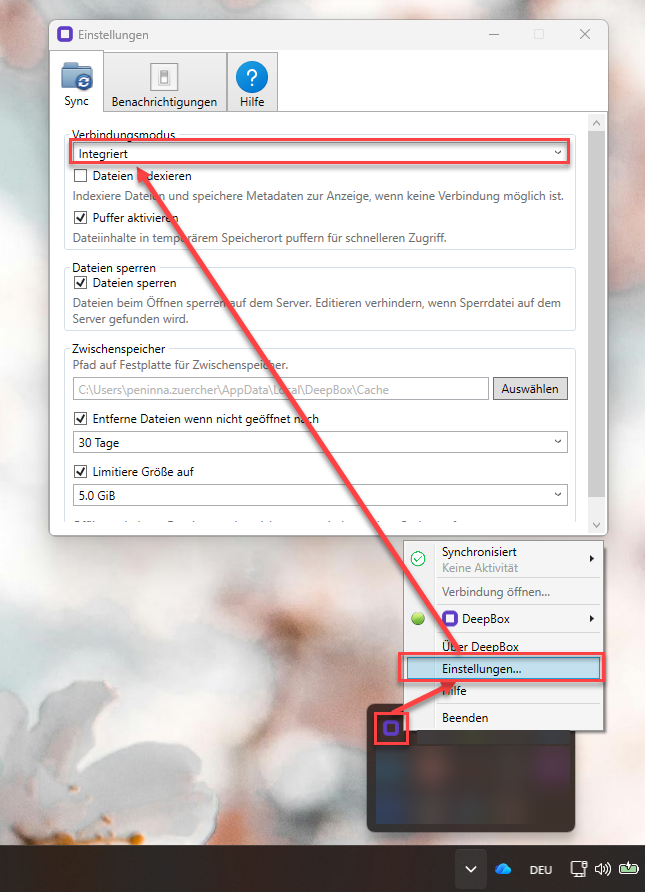
Also avoid names of folders or files in the DeepBox (Web) that have a dot at the end. Because Windows Explorer does not allow names of folders and files that have a dot at the end, such data is not synchronized from DeepBox (Web) with DeepBox Drive.
Did this answer your question?
Related articles
DeepBox desktop app
Local and secure management of your documents The DeepBox desktop app makes it easy to manage documents and other files on your computer (add, rename, structure, move, delete), ...
Mobile DeepBox-App
Mobile DeepBox Application Documents can be easily scanned using the DeepBox app, and the content is automatically analyzed and digitized through AI data capture. Additionally, ...