DeepO analysis workflow: from inbox to processing
Automatically translated
This article shows the DeepO analysis workflow. The process describes how a document goes from upload to the inbox to processing.
Standard workflow – out of the box
The standard workflow runs without additional configuration or training. It shows how a document is automatically analyzed and then checked in the DeepO Editor.
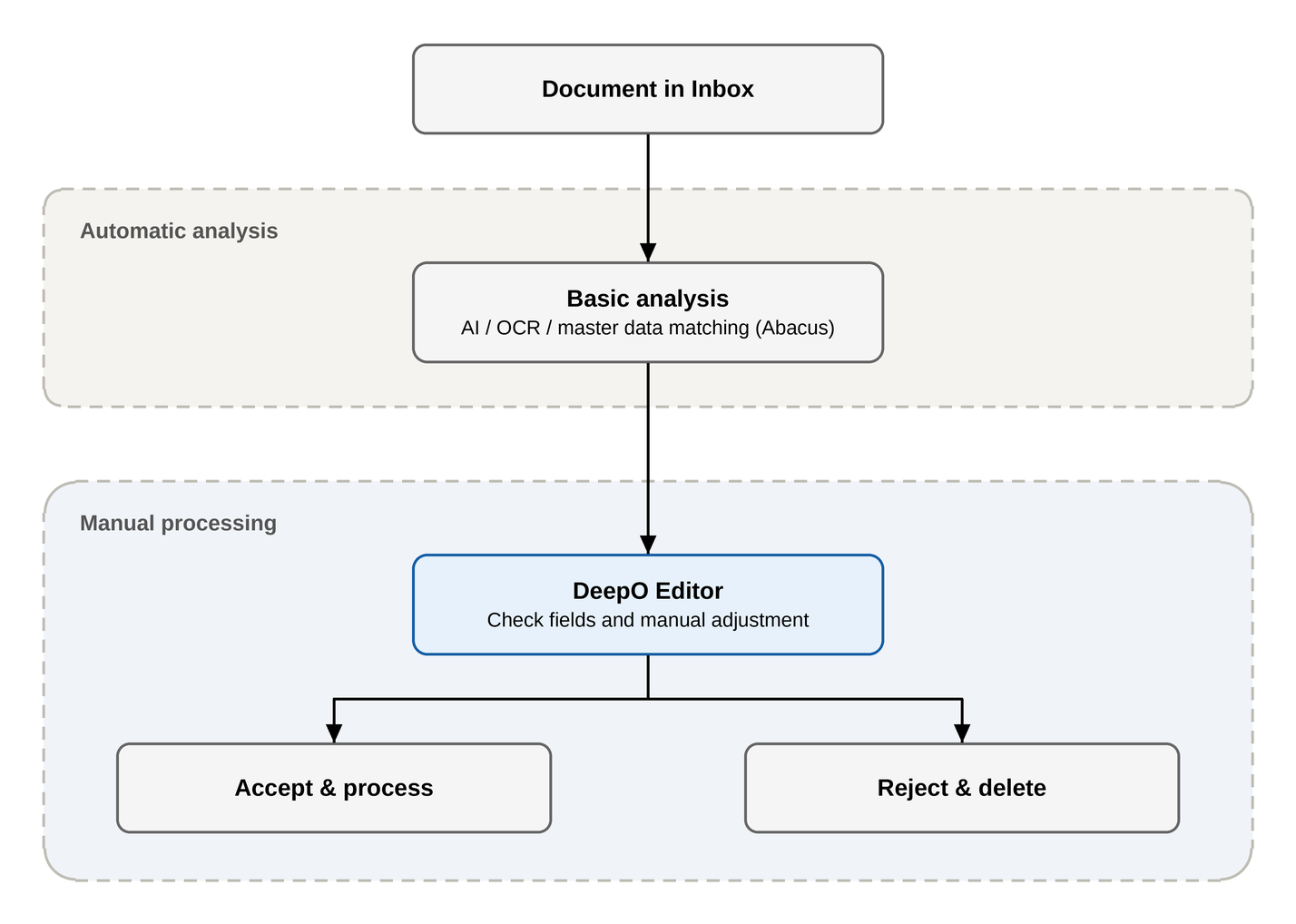
Document in Inbox
As soon as a document is uploaded to the inbox, the workflow is started automatically. There are different ways in which documents can be uploaded to the inbox, which are described in the following article: Options for uploading documents to the DeepBox.
Basic analysis
The basic analysis is applied to every document that is uploaded to the inbox. The basic analysis consists of an AI and OCR analysis. The recognized data is also compared with the uploaded master data (e.g. from Abacus). This is used to determine the document type and recognize its content.
DeepO Editor
As soon as the basic analysis is complete, the document can be clicked in the inbox and the DeepO Editor opens. All recognized data such as address, amounts, payment information, etc. are filled in the corresponding fields and marked in the document. The values can be checked, corrected and added manually if necessary.
Workflow with all training functions
If all training functions are activated, additional steps are added to the process. Keywords, flows, suggestions and validations supplement the basic analysis and further automate recognition.
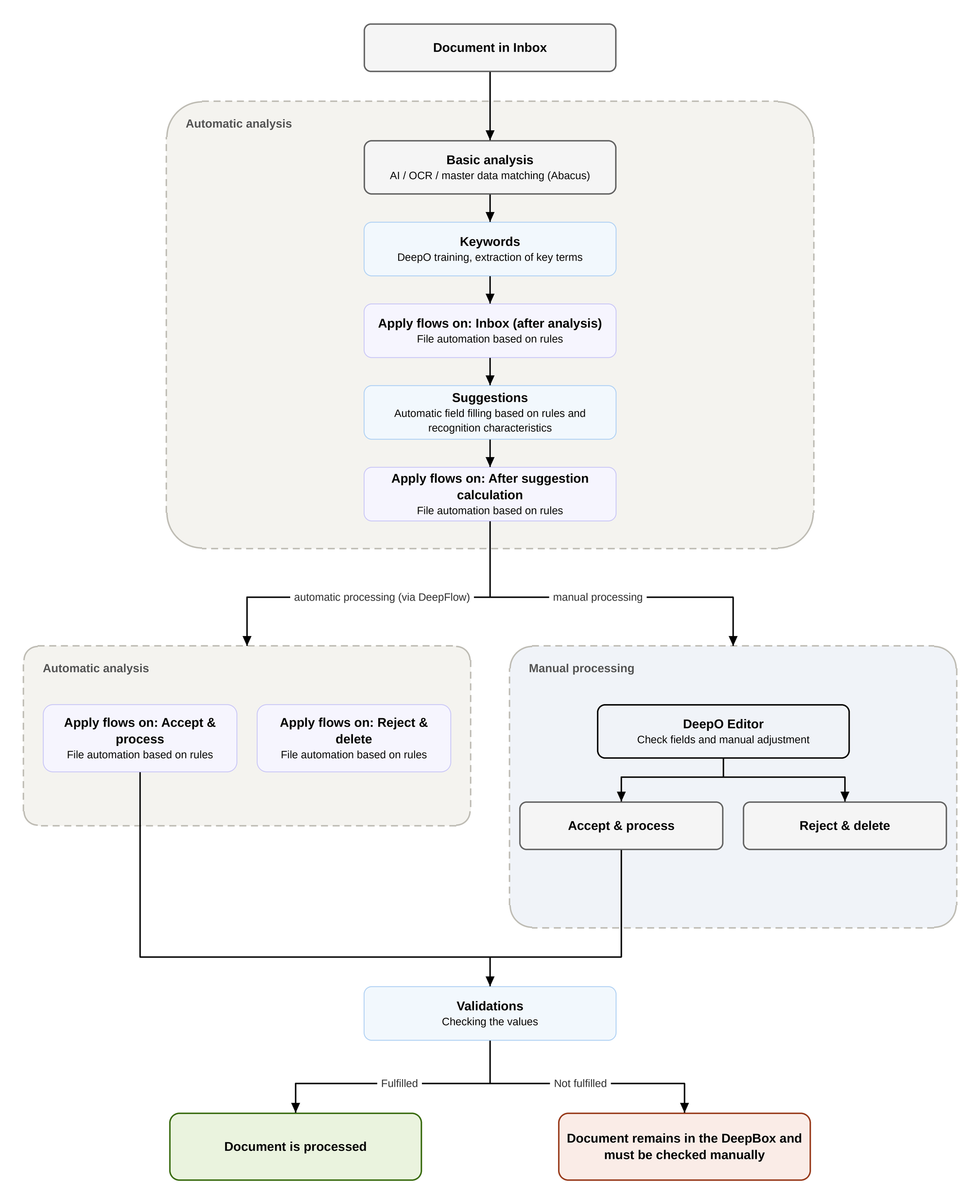
Document in Inbox
As soon as a document is uploaded to the inbox, the workflow is started automatically. There are different ways in which documents can be uploaded to the inbox, which are described in the following article: Options for uploading documents to the DeepBox.
Basic analysis
The basic analysis is applied to every document that is uploaded to the inbox. The basic analysis consists of an AI and OCR analysis. The recognized data is also compared with the uploaded master data (e.g. from Abacus). This is used to determine the document type and recognize its content.
Keywords
With the “Keywords” function, specific terms from a document can be recognized and assigned to the corresponding fields in the DeepO Editor. The keywords must match the content in the document exactly. Further information can be found in the linked article: Train keywords.
Flows
DeepFlow can be used to define automations for receipts that, for example, change the file name, set tags or process receipts automatically. The time at which a flow is executed depends on the “Apply on” setting. Further information can be found in the linked article: DeepFlow.
Suggestions
With suggestions, field values can be set automatically based on recognition characteristics in the document and rules. For example, an invoice with the characteristic “rent” can be assigned differently to an invoice with the characteristic “purchase”. Further information can be found in the linked article: Training suggestions.
DeepO Editor
As soon as the basic analysis is complete, the document can be clicked in the inbox and the DeepO Editor opens. All recognized data such as address, amounts, payment information, etc. are filled in the corresponding fields and marked in the document. The values can be checked, corrected and added manually if necessary.
Validations
The validations can be used to check the value of fields. If, for example, a selected mandatory field is not filled in, the document cannot be processed and an error message appears. Conditions can also be defined, e.g. that only numerical values may be filled in a specific field. Further information can be found in the linked article: Validations.
Did this answer your question?
Related articles
DeepO recognition behavior
Address recognition There are some factors for the recognition of addresses that are weighted higher for DeepO.For example, data from a QR code or ZUGFeRD is given preferential ...
Train DeepO
All fields in the DeepBox can be filled manually. The “Train DeepO” function can be used to automate the filling of the fields. Activation To be able to use the ...
Which documents does DeepO recognize?
DeepBox uses a scalable, intelligent recognition system that captures information from documents. This program is called DeepO. This recognition takes place in the inbox and can be...