Navigation and recording in position fields
Automatically translated
In the DeepO Editor, values within the items can also be entered or corrected manually. The following tips will help you to navigate efficiently through the fields and enter data quickly.
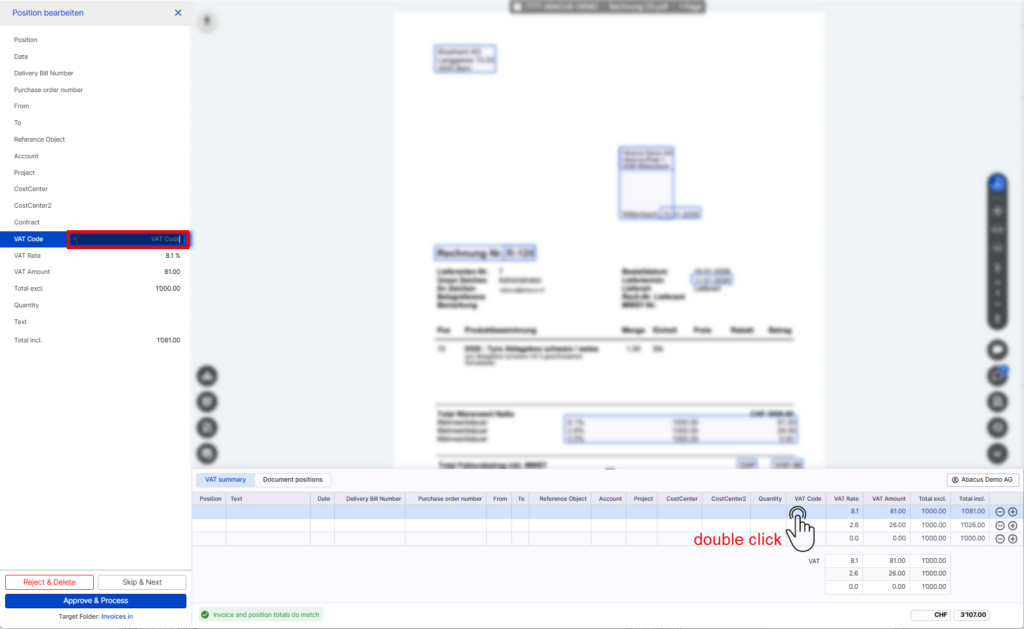
Opening the Position Field: Double-Click vs. Single-Click
Clicking on a field in the items opens the details panel on the left, displaying all fields for that item. The difference lies in the focus:
- Double-click: The field you click on is automatically selected, so you can start typing right away.
- A simple click: The panel opens, but no field is automatically selected. You must manually select the desired field before you can edit or add values.
Use the Tab key to move through the fields
As soon as a field in the panel is selected—either automatically by double-clicking or manually after a single click—the same navigation applies to both options:
- Use the Tab key to move to the next field within the item.
- If you press Tab again in the last field of the panel, the panel automatically moves to the next position.
More tips for efficient data entry and a better overview
- Use a double-click if you want to start typing directly in a specific field, and a single click if you want to get an overview of the location first and then select the field yourself.
- Fields within the items can be shown or hidden as needed in the box settings. For more information, see: Showing and Hiding Fields in the DeepO Editor
This means you don’t have to display fields you don’t need, which creates more space and provides a clearer overview while editing.
Did this answer your question?
Related articles
VAT summary / Activate document items
As of 26.02.2026, the two tabs “VAT” and “Positions” in the DeepO editor have been harmonized. Suggestions can now also be created in the VAT summary. Basic...
Recognize and activate document positions
Recognition positions By default, the VAT summary is used in the Advanced boxes. With this recognition, one item is created for each VAT rate recognized, regardless of the number ...
Standardised VAT and item workflow
The “VAT tab” in the DeepO Editor has been fundamentally revised and aligned with the “Positions tab”. Previously, only manual entries were possible in the ...