SSO Group Mapping
Automatically translated
With Group Mappings, owners and admins can link groups from their identity provider (IdP) to organizations, roles, and groups in DeepCloud. This allows the assignment of SSO users to DeepCloud organizations, roles, and groups to be managed centrally in the IdP instead of manually in DeepCloud. This simplifies user management and increases consistency and security.
Group Mappings connect your IdP groups with the corresponding organizations, roles, and groups in DeepCloud. When an SSO user signs in, DeepCloud automatically assigns the organizations, roles, and groups that match the user’s security groups in the IdP.
The management of your SSO users’ organizations, roles, and groups is therefore controlled centrally by the IdP, which serves as the central source for user, role, and group information.
To use Group Mappings, your IdP must be configured to send user group information during SSO authentication.
Prerequisites
Microsoft Entra (Azure)
Configuration IDP
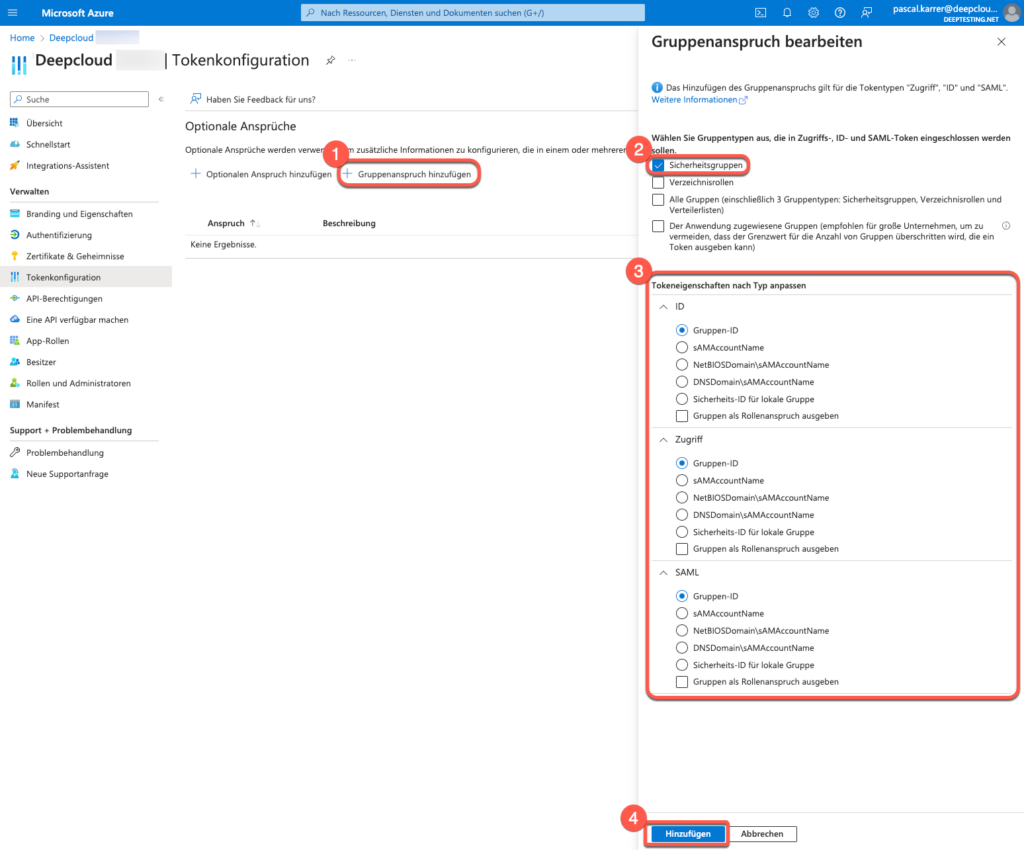
- Search for the DeepCloud App registrations in the Azure portal
Go to the Azure portal and navigate to Azure Active Directory > Microsoft Entra ID > App registrations. Search for your DeepCloud application and select it. - Select the Token configuration option in the navigation bar
- Click on Add group claim. The “Group claim” dialog box is displayed.
a. Select “Security groups” as the group type. - Select Group ID to use the unique group identifier. With this selection, the group mapping can be created in DeepCloud using the object IDs (e.g. efa39f24-e8db-4526-b65d-cc029d874c3c).
OKTA
Configuration IDP
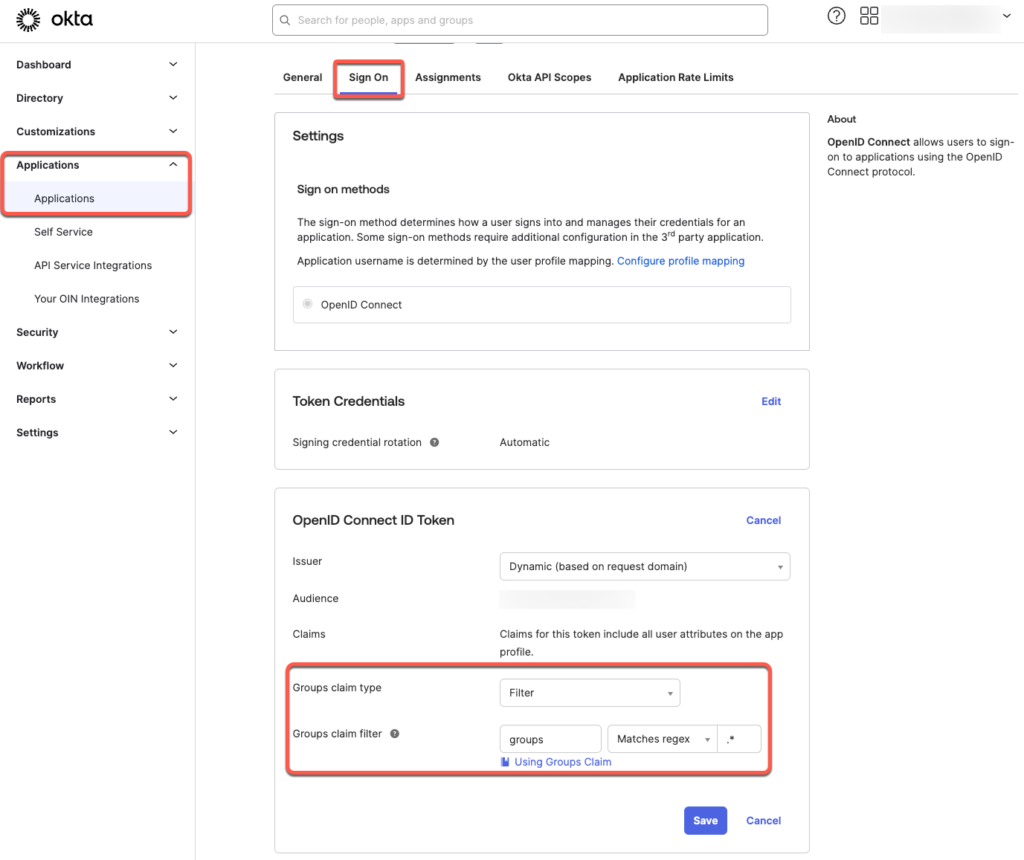
- In the Okta Admin Dashboard, search for the DeepCloud application
Go to the Okta Admin Dashboard and navigate to Applications > Applications. Search for your DeepCloud application and select it. - Select the Sign On option in the navigation bar
- Under OpenID Connect ID Token, click on Edit.
a. For “Groups claim type”, select Filter
b. For “Groups claim filter”, select “groups” “Match Regex” “.*” - Save the changes
To ensure that OKTA sends the group claims in the ID token, follow these steps:
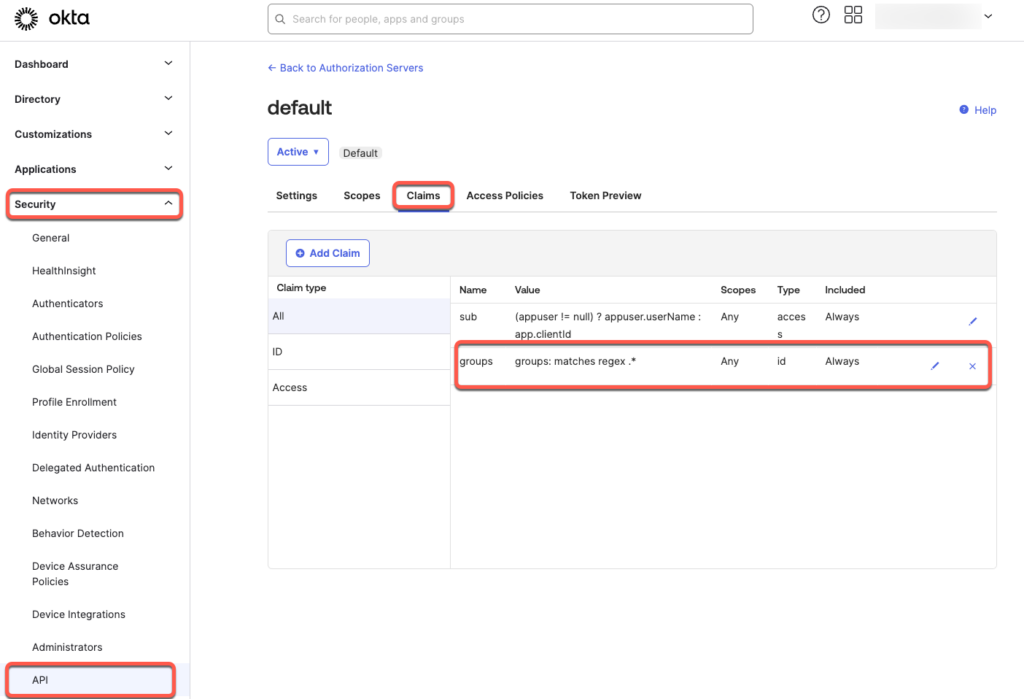
- Navigate to Security > API.
- Select the desired Authorization Server that you want to use for the DeepCloud application. Normally this is the “default”
- Click on the Claims tab.
- Add a new group claim
a. Click on the “Add Claim” button.
b. Give the claim the name “groups”.
c. Select “ID Token – Always” as the Token type
d. Select “Groups” as the Value type
e. Select “.*” for the filter “Matches Regex” - Save the adjustments
Configuration Group Mapping in DeepCloud
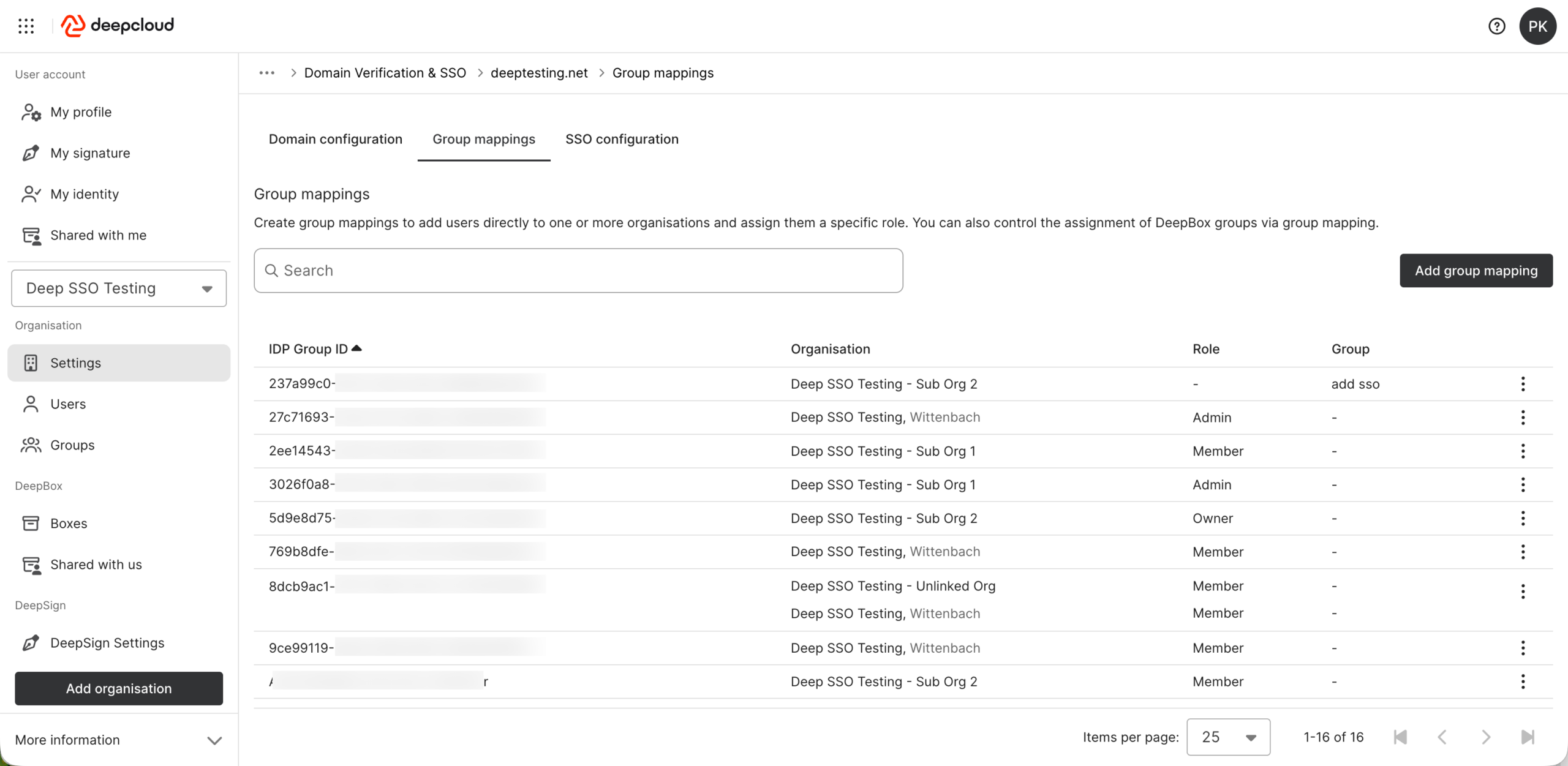
- Go to DeepAdmin and navigate to Organization > Settings > Security & Login, then click Manage.Select the desired domain to open its settings.
- Switch to the Group Mappings tab to edit existing mappings or create new ones.
- Click Add Mapping to create a new Group Mapping.
a. Enter the object ID of the security group (Microsoft Entra ID) or the group name (Okta Admin).
b. Select the corresponding organisation.
c. Choose the desired role or group.
Note
- You cannot define a Group Mapping if default groups are already configured. Remove them first before creating a Group Mapping.
- The Group Mapping becomes active once at least one mapping is defined and the option Automatically add users of this domain to the organization upon login is enabled in the domain configuration.
Limitations
DeepCloud supports login tokens containing up to 150 group IDs (OKTA up to 100 groups). If you need to use more than 200 groups per user, please refer to the following support article.
Did this answer your question?
Related articles
SSO configuration
As an owner or administrator of your organisation, you can configure Single Sign-On (SSO) via an identity provider (IdP) for your DeepCloud environment. This ensures that ...
What can I do with groups?
You can add multiple users to a group and reflect teams within an organization. This is particularly helpful when working with many different boxes. This means that you don’t...
Limit group claims to selected groups
In Azure AD (Microsoft Entra ID), group memberships can be included in the token of an enterprise application in order to control authorizations within the application.However, as ...