Automatic real estate recognition
Automatically translated
The following shows how documents with real estate details can be processed automatically via the DeepBox.
Note: This article relates exclusively to real estate recognition. If you work with business areas in the financial area, you still need to create a separate
Advanced box for each business area as usual.
Master data
The master data (especially real estate) must be uploaded from Abacus:
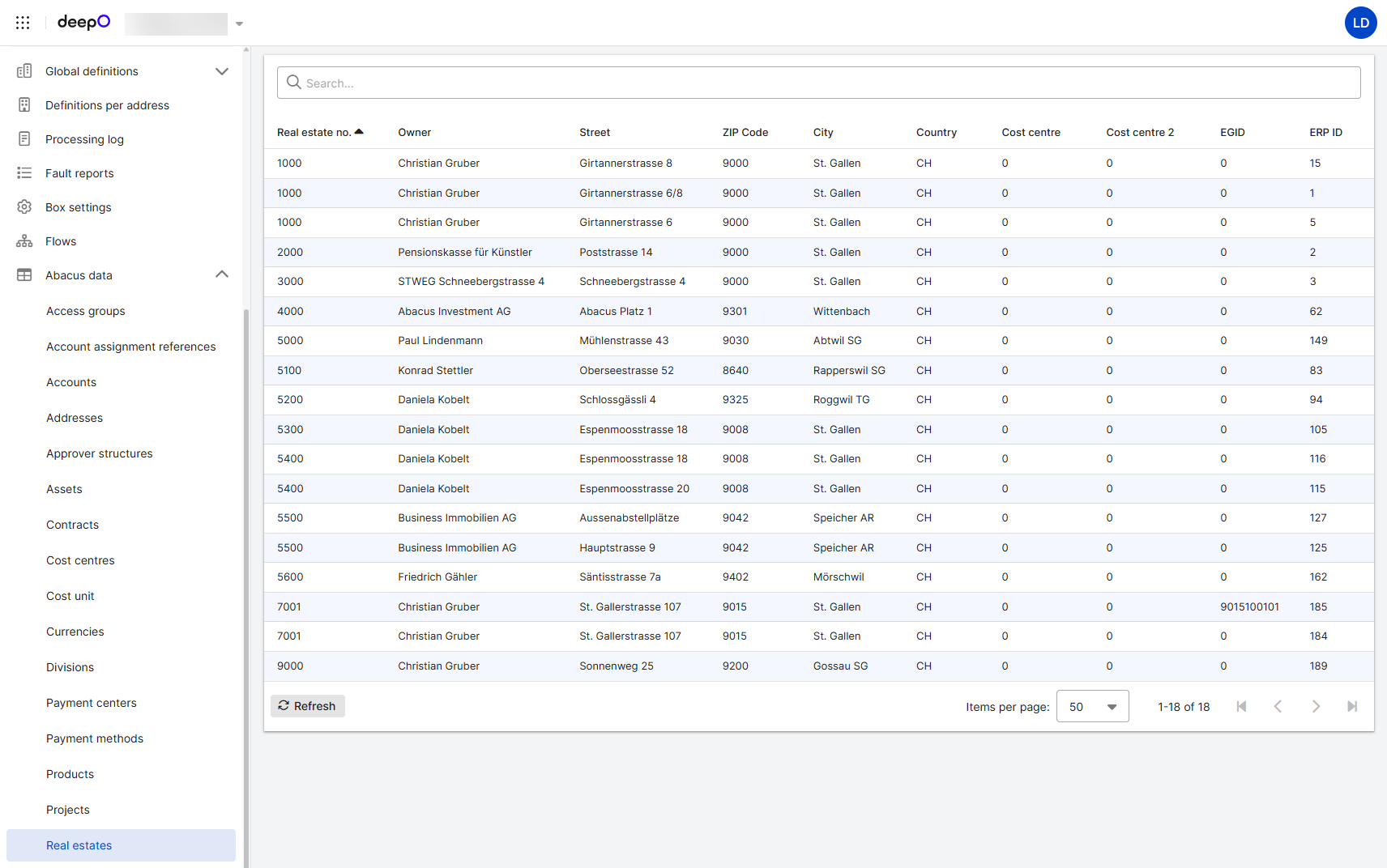
(property no., owner, street, zip code, city, country, cost center, cost center 2, EGID, ERP-ID)
Invoice content
Ideally, suppliers should write the EGID or the exact name of the property or business unit on the invoice. The address or postcode/location can also be taken into account for matching the property, but is less clear (as several properties may be in the same location and at the same address) and therefore more challenging to match correctly. The information can be included either as a reference line or in the recipient address:
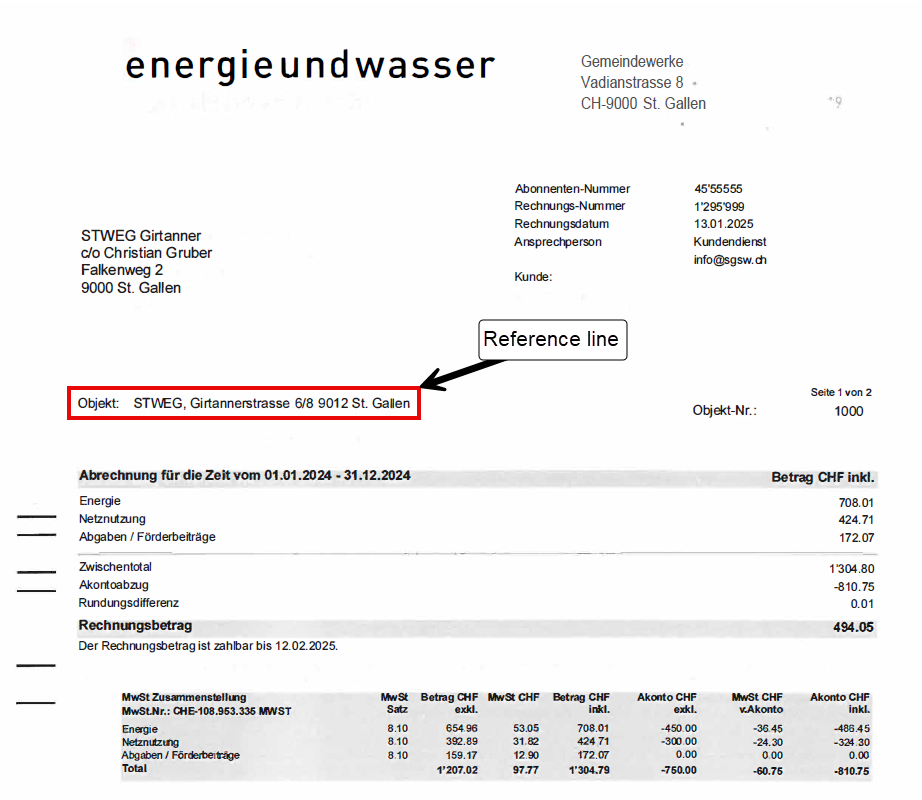
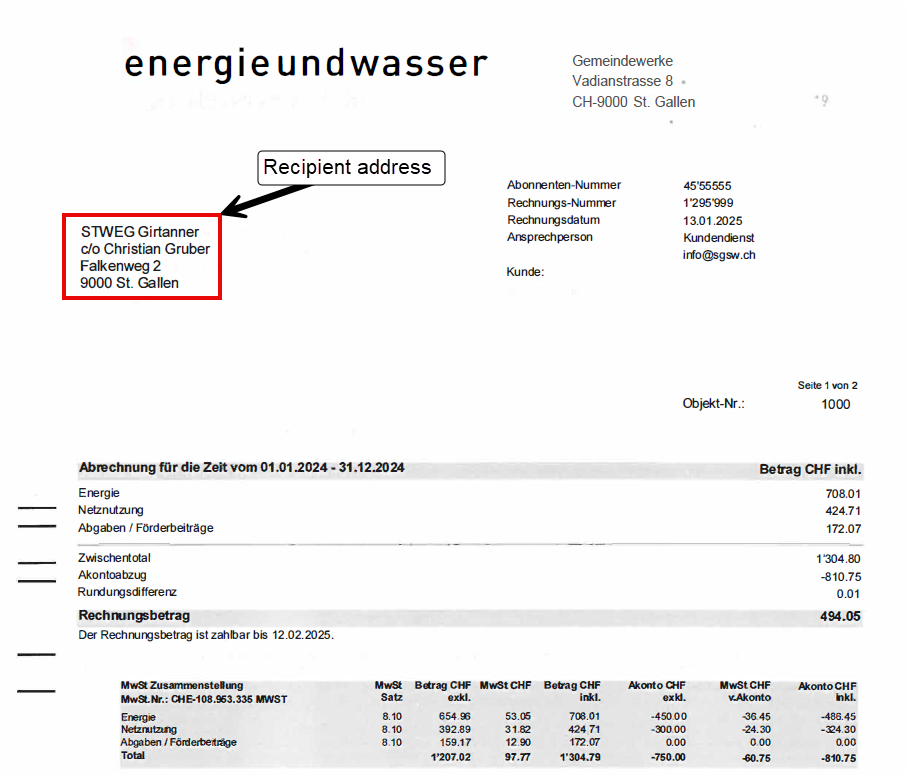
If a reference line exists, this takes precedence over the recipient address. The recipient address is only taken into account if there is no reference line.
Automatic detection of an object
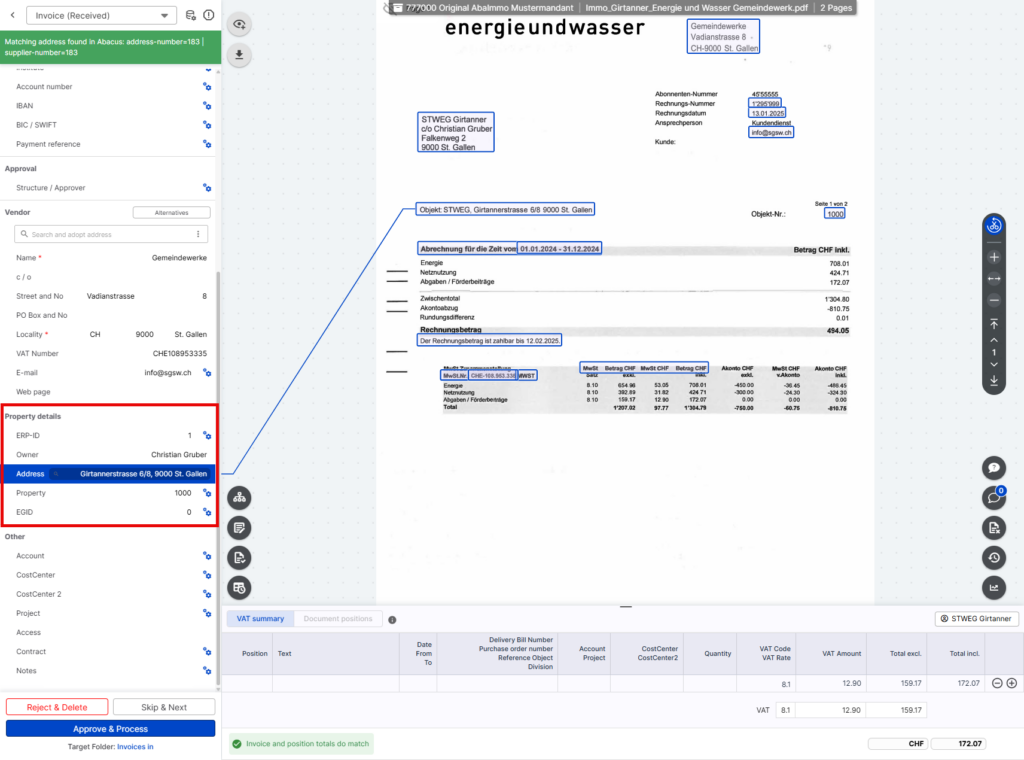
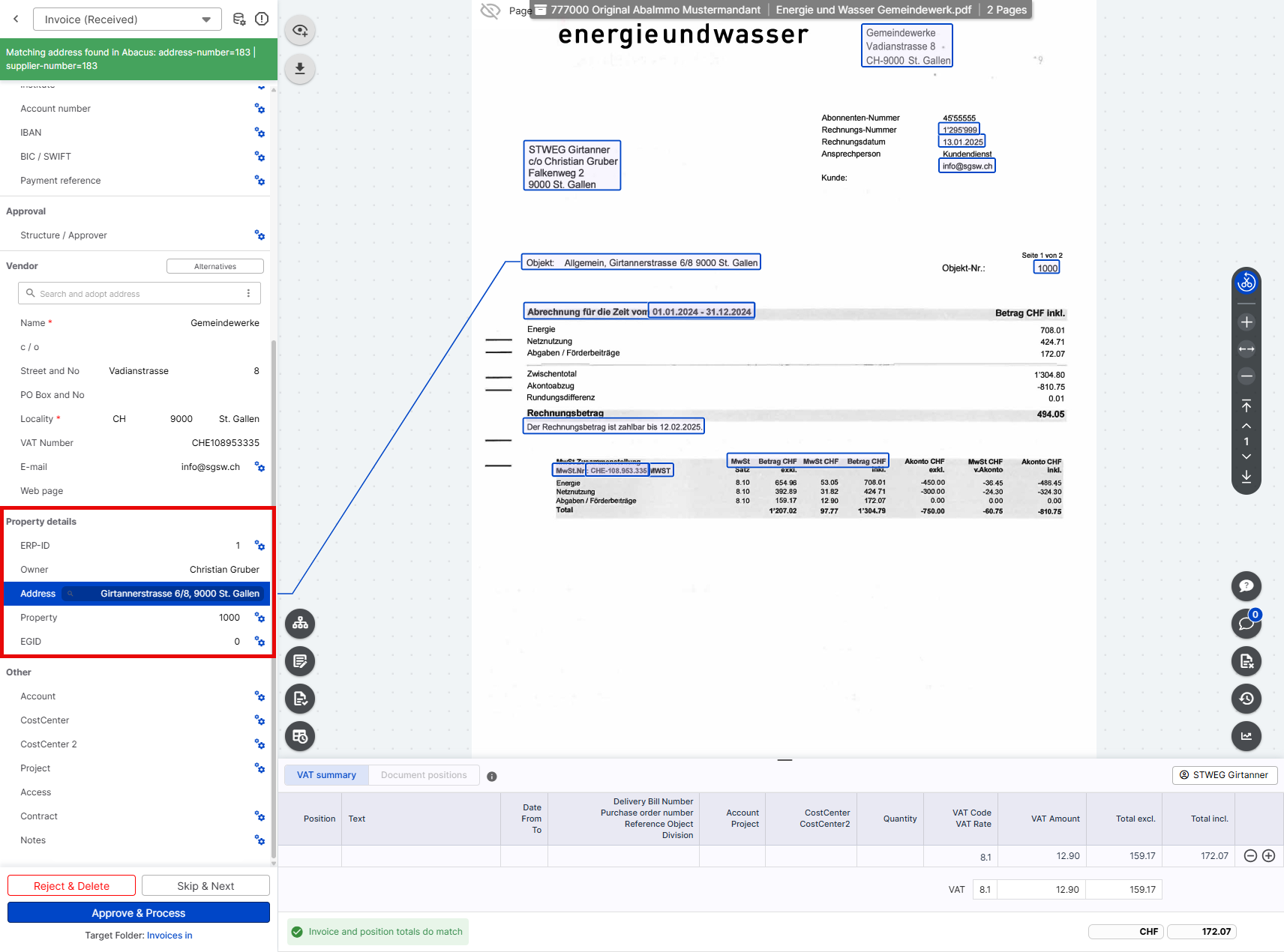
The invoice is loaded into the inbox. The invoice shows the property with the address (e.g. Girtannerstrasse 6/8). If the address is preceded by a generic keywords such as object (as in the example below), house, property, building, etc., the address is compared with the real estate master data. The details of the possible property are then filled in the DeepBox Editor.
Training using suggestions / keywords to recognize an object
The property cannot be recognized automatically, e.g. because there is no corresponding keywords on the invoice, the property details are not detailed enough, several business units are at the same address or the details are positioned unfavorably.
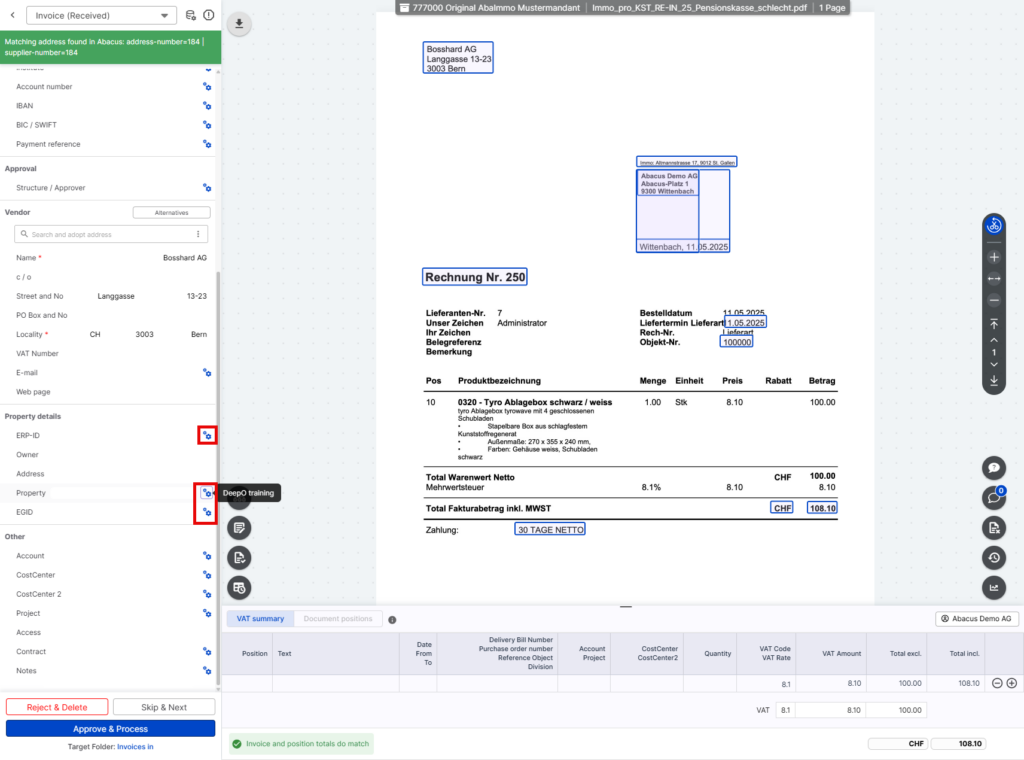
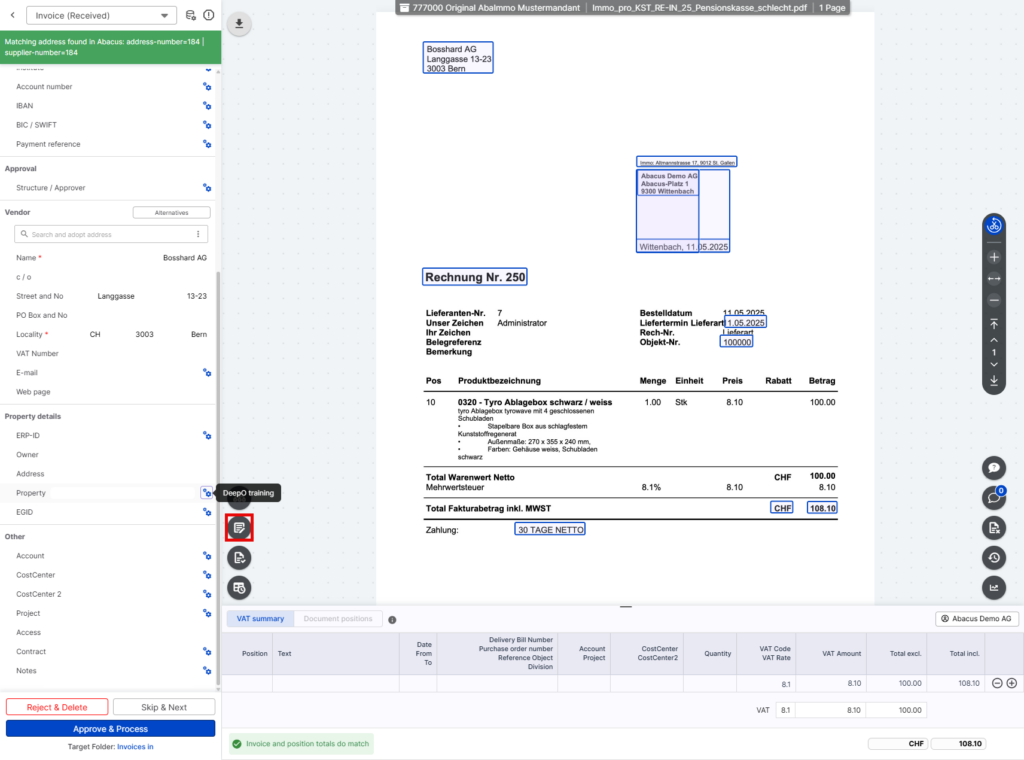
In this case, the property can be transferred via a suggestion in the “ERP ID”, “Property” or “EGID” field by setting characteristics of the corresponding property as a condition. Or if there is a recurring keyword on an invoice layout, this can also be trained using keywords in the “ERP ID”, “Property” or “EGID” field.
Based on the keywords or suggestions, the other details of the property are loaded and displayed in the DeepO Editor.
Note: Suggestions and keywords can be entered on “all addresses”. This means that the property details are checked for all suppliers.
Keywords
Note: The following support article describes how to set up keywords.
Note: The following support article describes how to set up keywords.
Suggestion
Note: The following support article describes how to set up a suggestion.
Note: Suggestions and keywords can be entered on “all addresses”. This means that the property details are checked for all suppliers.
Business division per property
The following applies to clients who manage one business division per property:
Prerequisites:
- Each property represents a business area
- Advanced box opened at client level
- Master data uploaded
- “Train DeepO” active (at least Compact subscription)
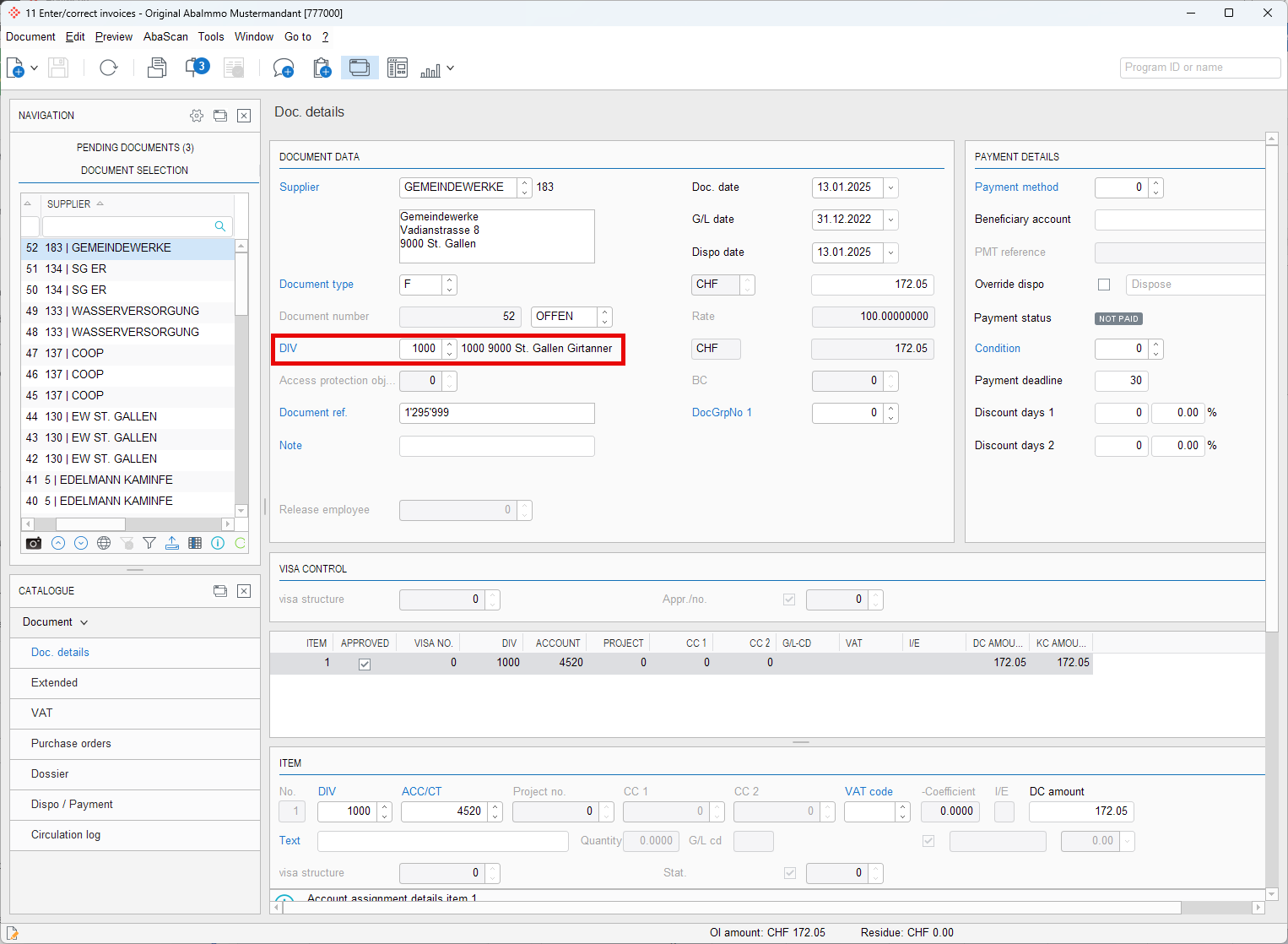
Based on the automatic recognition of the property details in the DeepBox, the correct business area is transferred in program K11 “Enter/correct invoices”.
If no property details are available, the document is stored in the “Pending documents” tab in the K11 “Enter/correct invoices” program. The document can be processed further from there. In this case, the business area must be set manually. To ensure that no document is processed in Abacus without a property, validations can also be set in DeepO in the Property field.
Note: See also the following support article for validations.
Did this answer your question?
Related articles
keywords train
With the “keywords” function, specific information from documents can be recognized and assigned to the fields in the DeepO Editor. Activation To use the ...
Update suggestions
With “Suggestions”, different field values can be set in the document based on recognition characteristics – both at header and item level.For example, an invoice...
Validations
With “Validations”, fields can be checked for their value and a corresponding message can be displayed.This is possible at both header and position level. Two examples ...