Mailroom
Automatically translated
The Mailroom automatically routes incoming documents to the appropriate destination box based on forwarding rules. Assignment is based on the recipient address recognized on the document. If multiple destination boxes use the same address, the forwarding rules can be further refined using identifying characteristics, such as to distinguish between different departments.
Create a forwarding rule
- In the DeepO settings, on the “Mailroom” tab, click “Add.”
- Select a target box
- Check the addresses on file. You can edit them using the pencil icon and add multiple addresses (e.g., headquarters and branch office).
- Select an assignment criterion:
- Address Matching Only: Forwarding based on the recipient’s address.
- Address Matching and Attributes: In addition, certain words must appear on the document. This is useful when multiple destination boxes use the same address.
- Compare recipient names:
- Tolerant (recommended): Accepts minor variations and similar spellings in the address
- Exactly: the recognized address does not allow for any deviations
- When performing address matching, specify additional attributes:
- Features: Enter one or more words to distinguish between the documents.
- Link:
- All (+): All words must appear, e.g., Finance and Controlling
- Any one (/): At least one is sufficient, e.g., resident services or resident registration
- Where are the features searched for?
- In the recipient address block (recommended): Searches the entire recipient block, including department and “Attn:” lines.
- On the entire first page: If the department is not listed in the recipient address block but, for example, in the body of the invoice.
- Save.
Test Forwarding
In the Mailroom configuration, enable “Test Mode.” Upload a few invoices to the Mailroom box. Each document will receive a tag and a DeepFlow comment in the detail pane on the right.
| Tag | Comment | Meaning |
| Mailroom Success | Forward will be sent to the box: … | Exactly one rule applies. In test mode, no shift occurs yet. |
| Mailroom Error | No box matched | No rule applies. |
| Mailroom Error | More than one box matched | Several rules apply. The affected boxes are listed in the comment. |
Multiple matches are not a system error: The Mailroom does not assign the document arbitrarily, but leaves the assignment up to the user. This can happen, for example, with consolidated invoices for multiple departments.
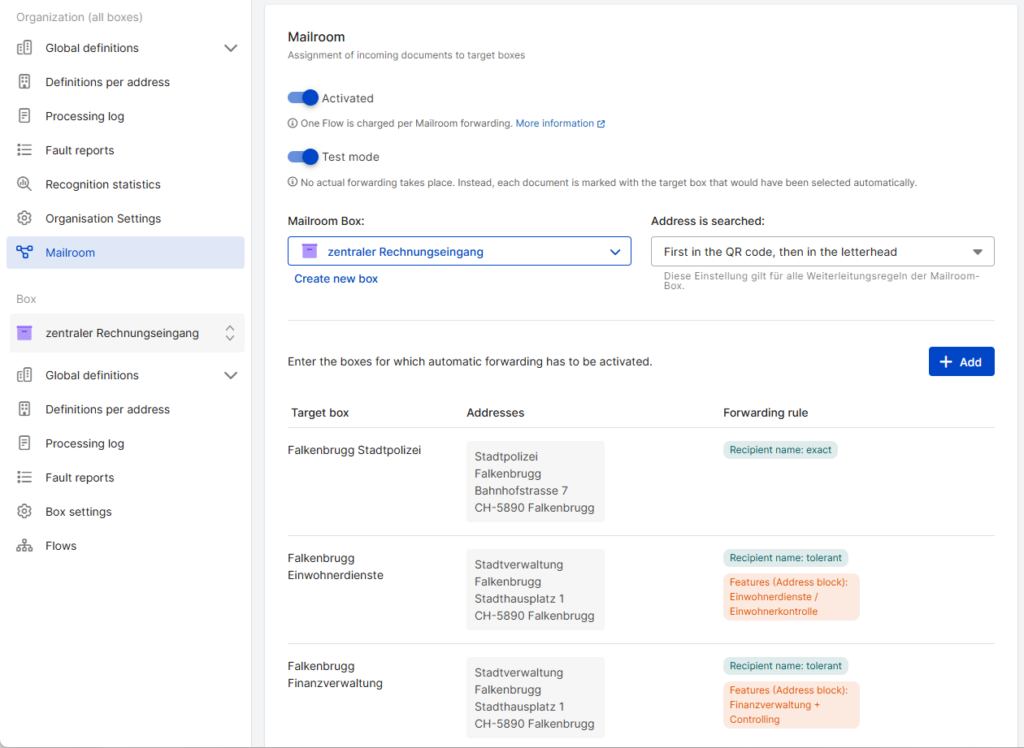
Example:
| Target Box | Registered Address | Features | Search Range |
| Falkenbrugg Stadtpolizei | Stadtpolizei Falkenbrugg, Bahnhofstrasse 7, 5890 Falkenbrugg | Address matching only, exact | – |
| Falkenbrugg Einwohnerdienste | Stadtverwaltung Falkenbrugg, Stadthausplatz 1, 5890 Falkenbrugg | [Einwohnerdienste] or [Einwohnerkontrolle] | Address Book |
| Falkenbrugg Finanzverwaltung | Stadtverwaltung Falkenbrugg, Stadthausplatz 1, 5890 Falkenbrugg | [Finanzverwaltung] and [Controlling] | Address Book |
Did this answer your question?
Related articles
Activation Mailroom & Flows
In order to use the Mailroom and DeepFlow functions, a service user with connection and access to the box must be created. 1. jump to the DeepO settingsTo do this, go to the DeepO ...
Costs for DeepFlow and Mailroom
The costs for Mailroom and DeepFlow always consist of the same two components: document analysis and the flow run. Each costs CHF 0.05. DeepFlow Costs You are not charged for each ...
Difference between Simple Box and Advanced Box
Simple Box Advanced Box Price Free of charge CHF 9.00/month Access to documents via link Yes Yes Release from Box Yes Yes Mail to Box function (e-mail and smart upload) No Yes ...