Enforce two-factor authentication for external shares
Automatically translated
When accessing shared items, you can enforce two-factor authentication (2FA). This works similarly to the global two-factor authentication requirement that you can enforce for members of your organization.
The setting can be configured individually for each share. You can define the default value (enabled or disabled) at the space level. There, you can also adjust the setting for all shares within the space at once.
How to enable the setting for each individual share
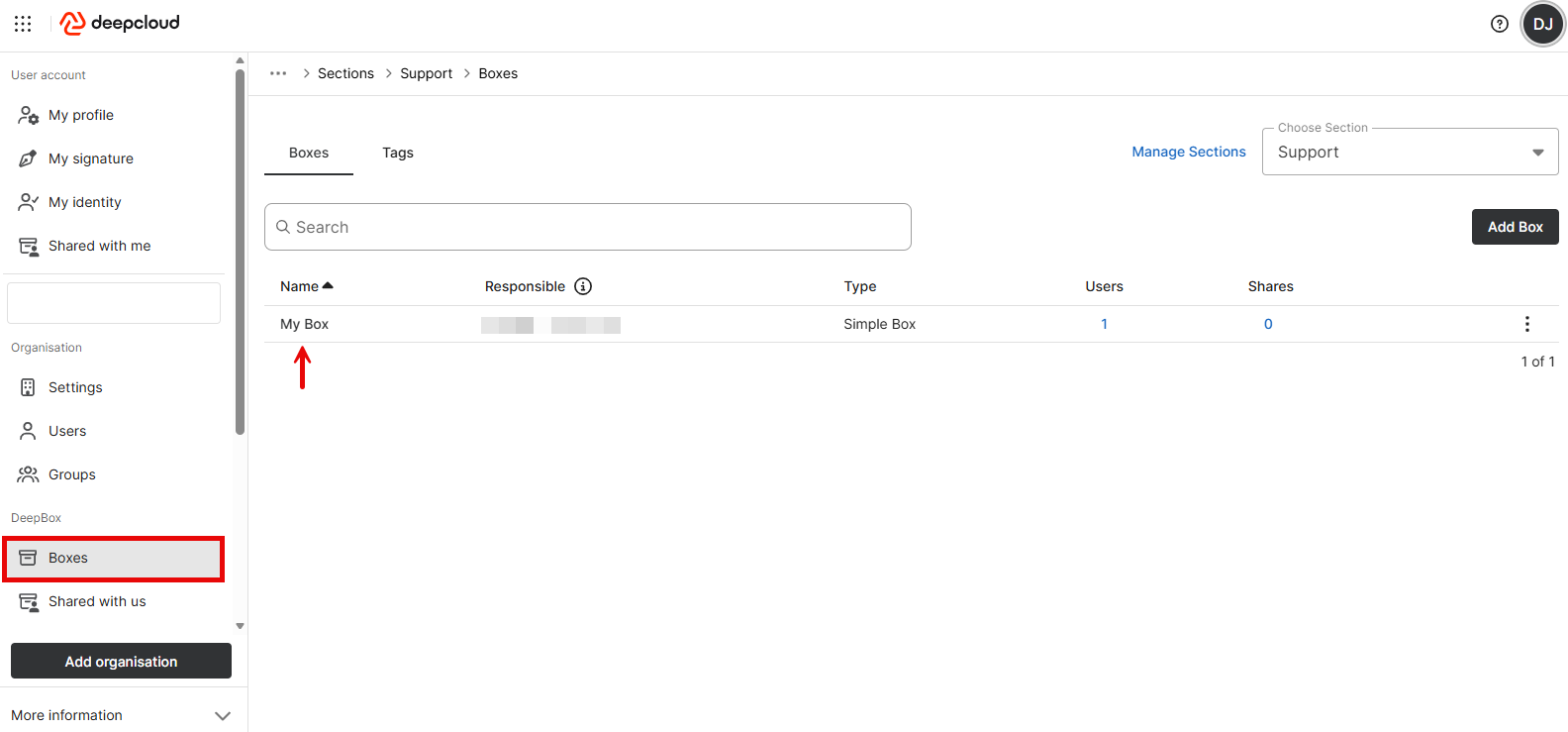
- Open the Box settings.
- Click the box name. You will be taken directly to the box management page in DeepAdmin.
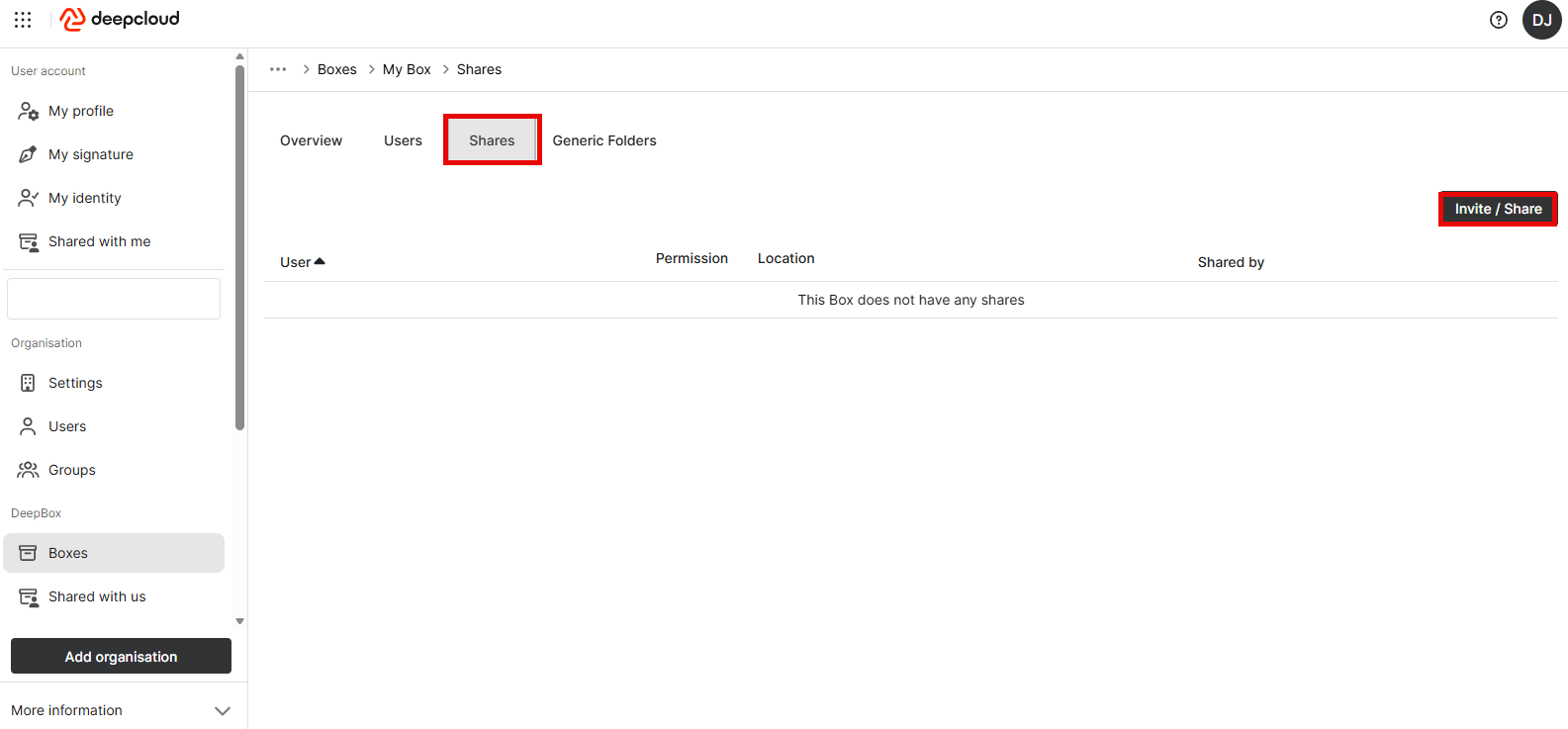
- Click Shares and then «Invite / Share».
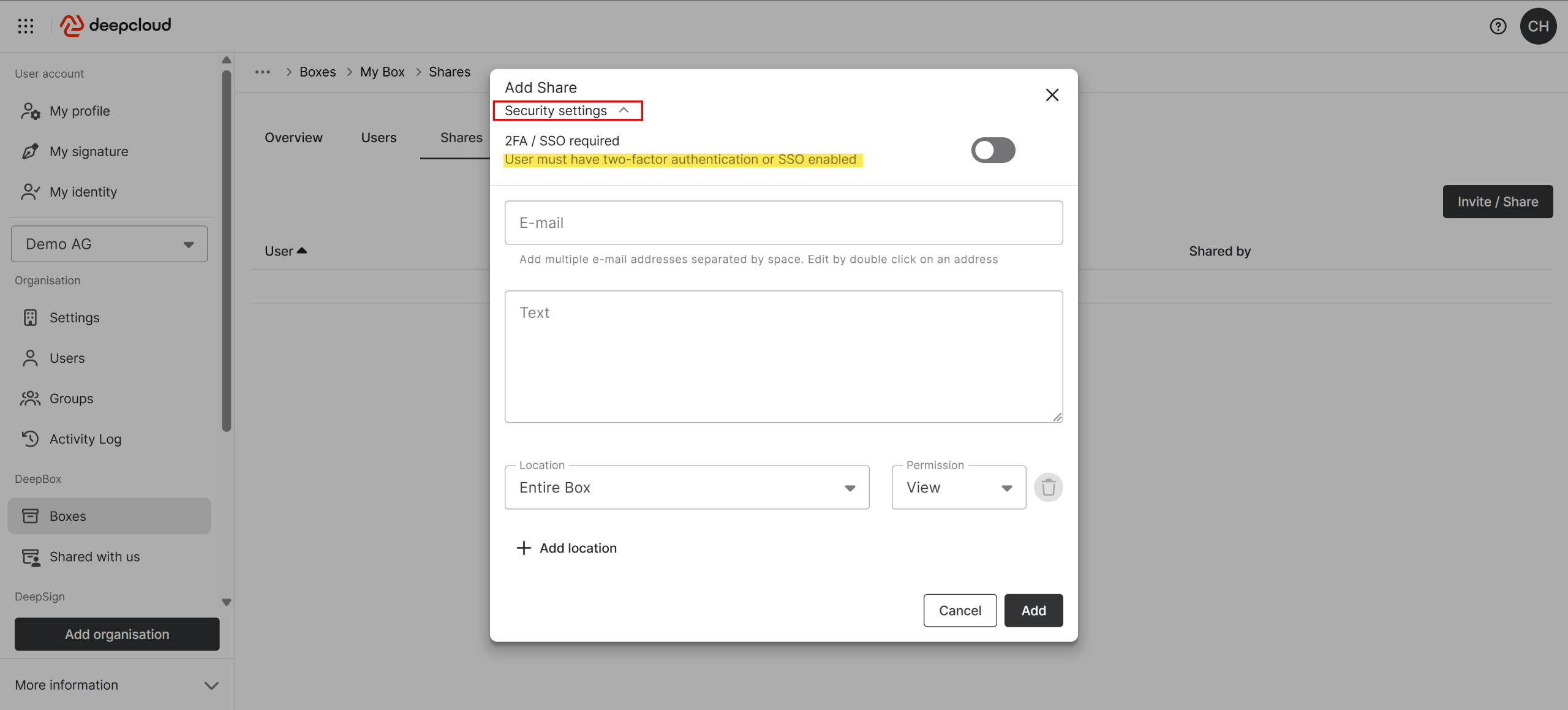
- The “Add Share” window opens. Click “Security Settings“. Enable the option requiring additional authentication (2FA or SSO) for shared items.
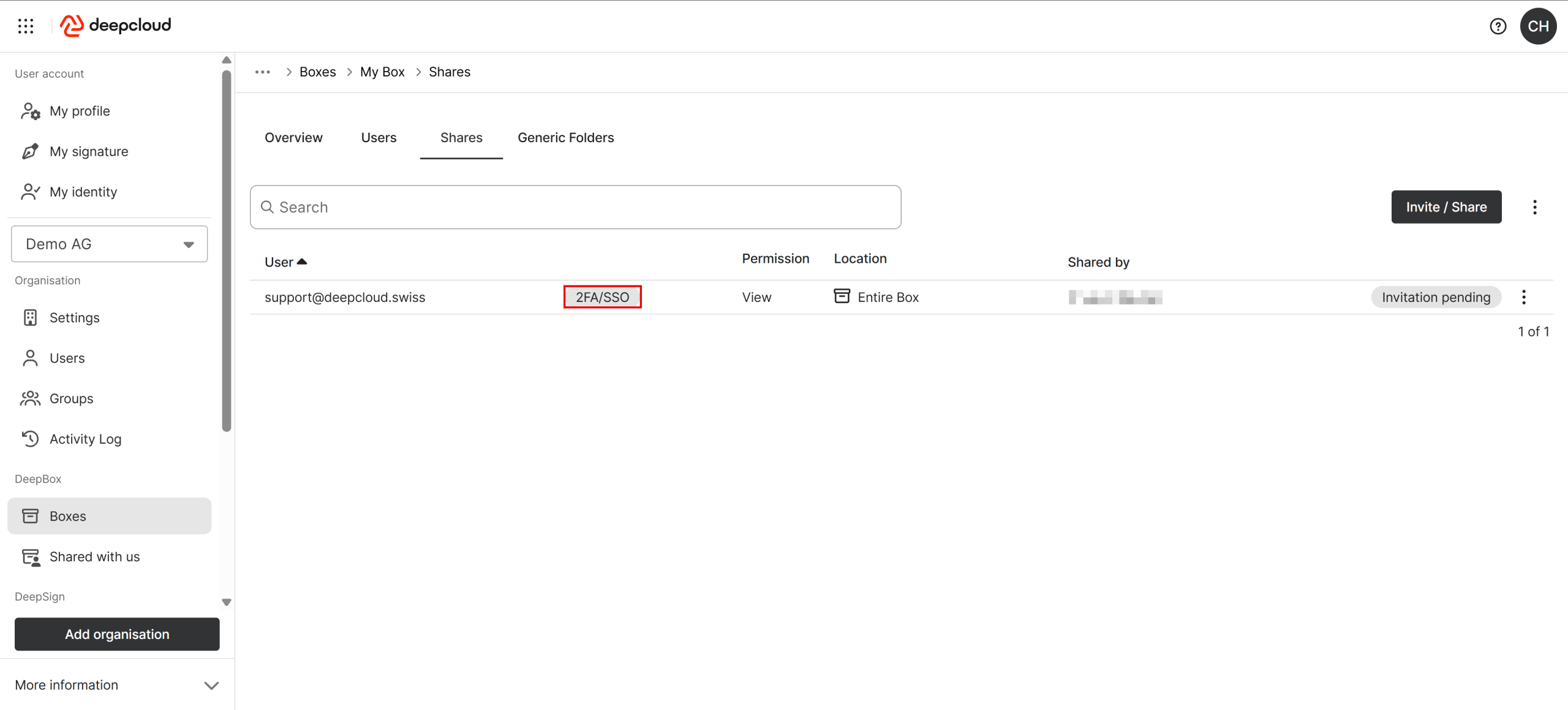
- You will then see an overview indicating which users are required to complete an additional login using 2FA or SSO.
How to manage the setting for each individual sections
- Open the Box settings.
- Click on«Manage Sections» in the top-right corner. You will be taken directly to the area management section in DeepAdmin.
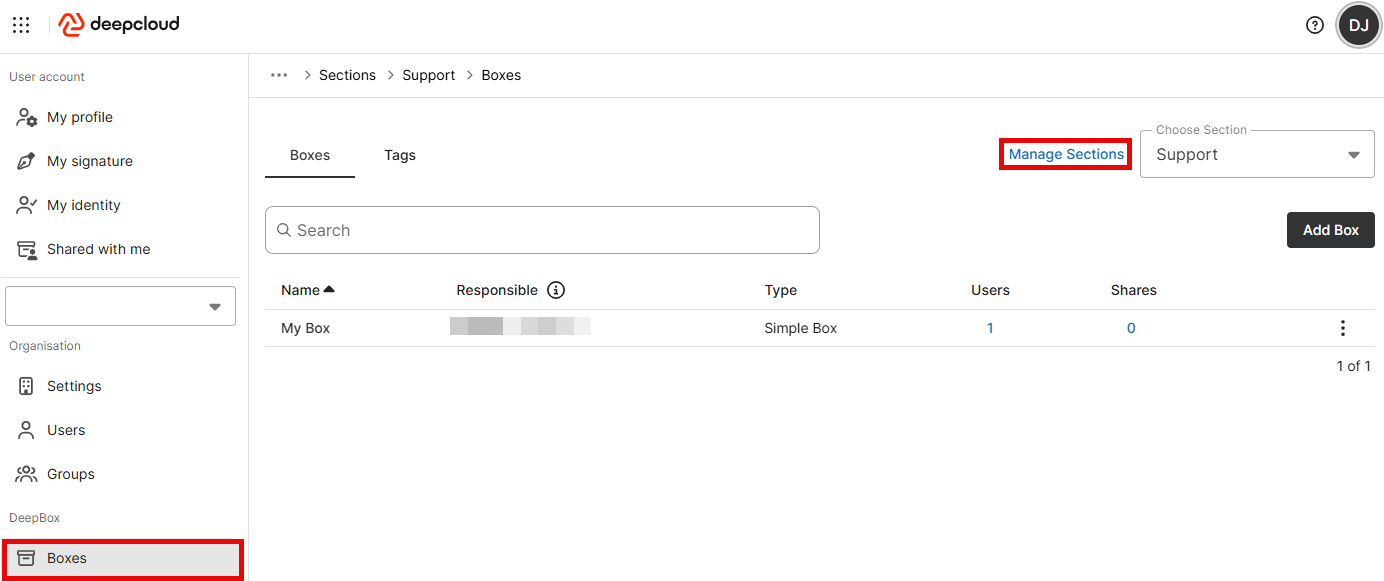
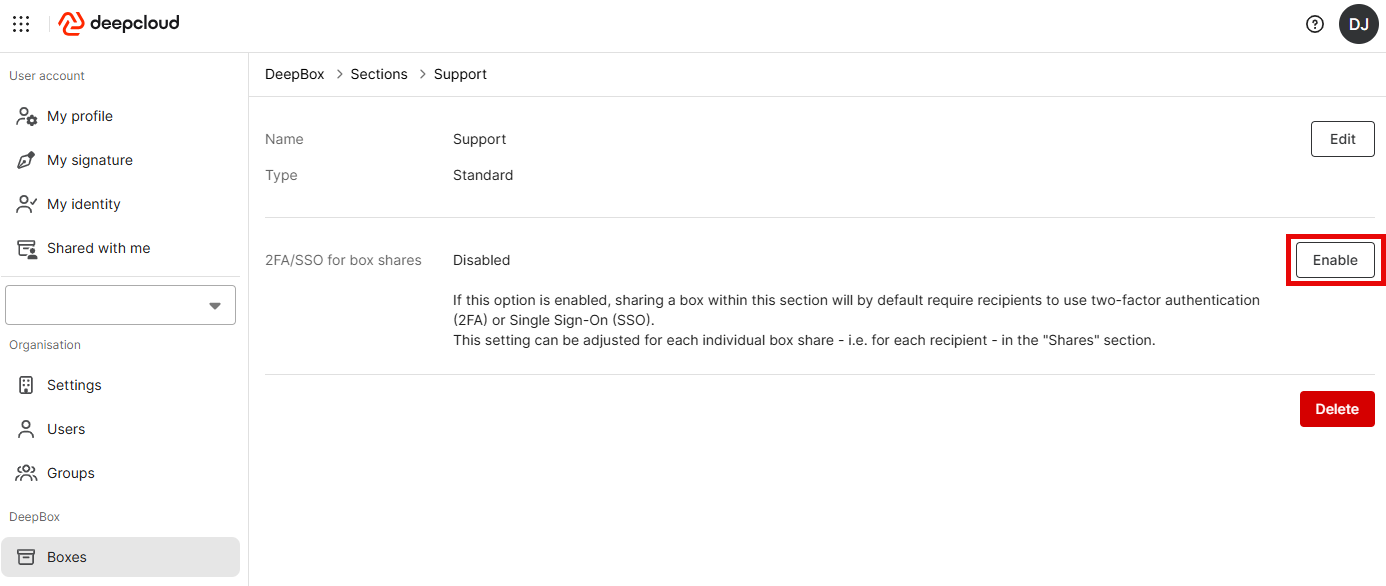
- Select the desired section.
- Enable the option requiring an additional login (2FA or SSO) for shared items.
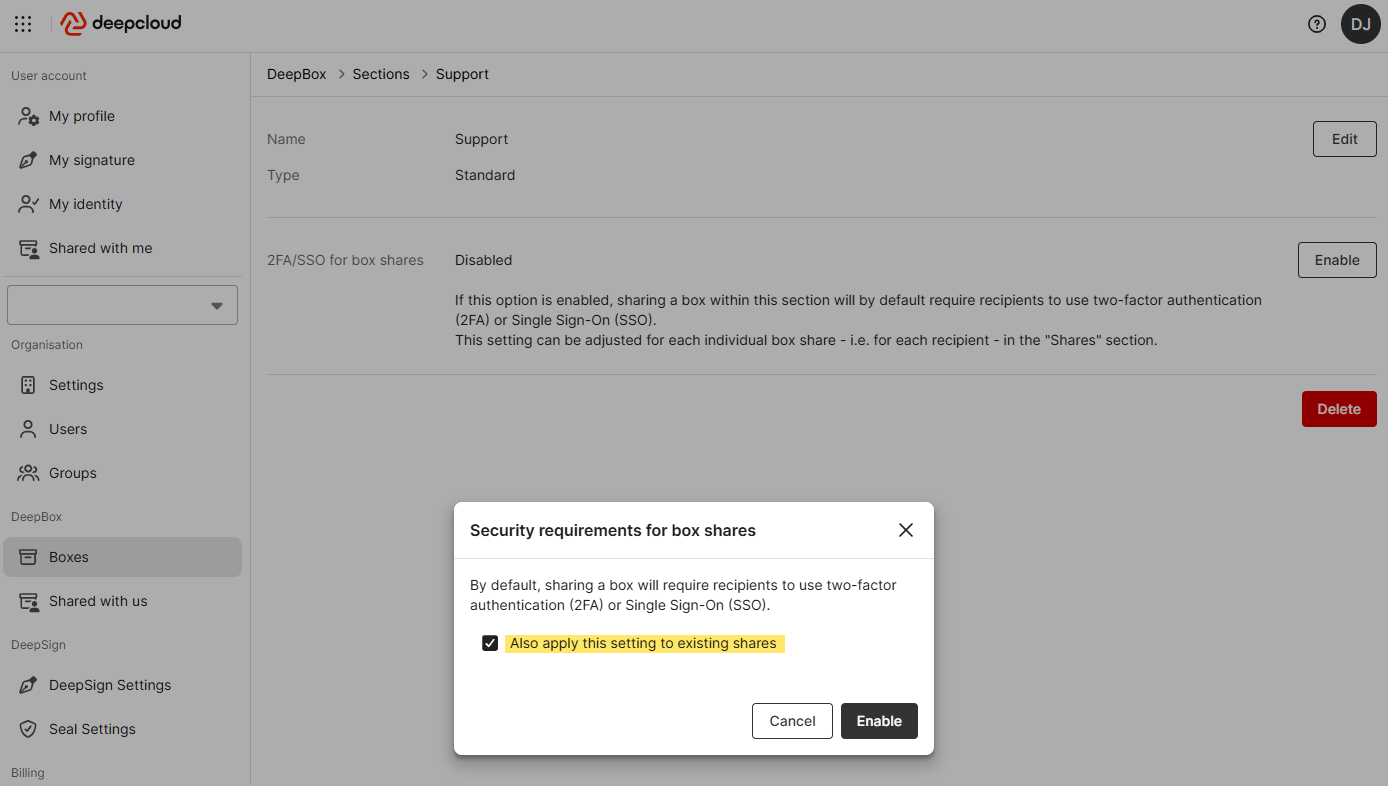
- Optional: Apply the setting to existing shares as well.
Impact on Share Recipients
If the setting also applies to existing shares, the access requirements for recipients will change. The specific impact depends on how the recipient is currently authenticated:
- 2FA or SSO login already enabled: Nothing changes for these recipients.
- Neither 2FA nor SSO login enabled: They must first enable two-factor authentication and log in again before they can access the shared item.
- New users: They enable two-factor authentication directly when creating their account.
Did this answer your question?
Related articles
Customize access to a Box (external Shares)
Owners, Admins, or Members with organisational rights on a Box can invite external users in DeepAdmin under “Boxes.” The management of external shares is carried out as ...
Two-Factor Authentication – 2FA
Two-factor authentication provides an extra layer of protection for your DeepCloud account against unauthorized access. When logging in, you’ll need both your password and a ...
New or Lost Cell Phone
Getting a new smartphone or losing your device can affect two different sections: two-factor authentication (2FA) for your DeepCloud account and your DeepID. Please follow the ...