Two-Factor Authentication – 2FA
Automatically translated
Two-factor authentication provides an extra layer of protection for your DeepCloud account against unauthorized access. When logging in, you’ll need both your password and a security code from an authenticator app.
Was Sie benötigen
Install an authenticator app on your smartphone. The following are supported:
- Microsoft Authenticator (Download for iPhone, Download for Android)
- Google Authenticator. (Download for iPhone, Download for Android)
- FreeOTP (Download for iPhone, Download for Android)
Set up two-factor authentication during registration
If you are invited to a DeepPortal that requires two-factor authentication, the process works as follows:
- Open the invitation email and follow the registration process as described here.
- Click “Accept & Enable 2FA”
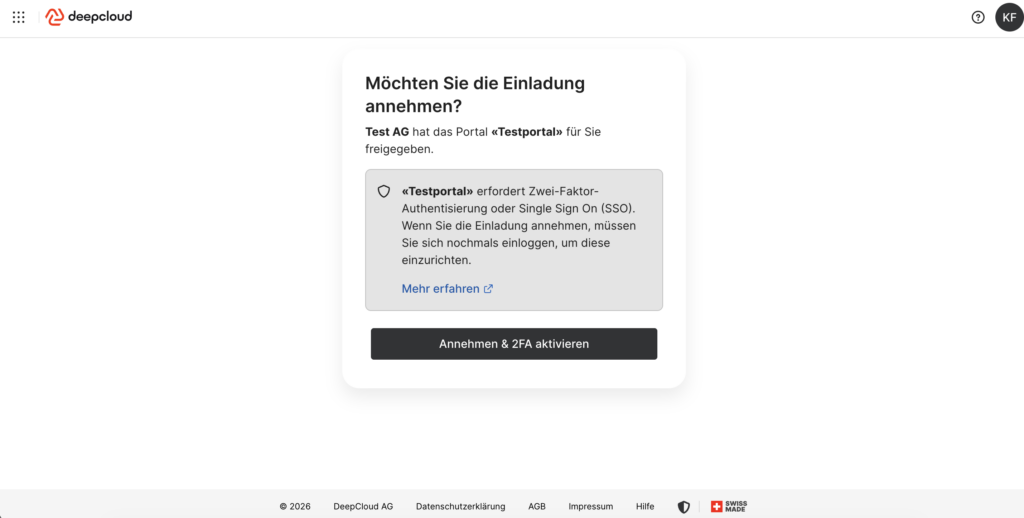
3. Log in again.
4. On your smartphone: Open the Authenticator app you installed (Microsoft Authenticator, Google Authenticator, FreeOTP) and scan the QR code.
5. Enter the one-time code from your authenticator app and click “Submit”
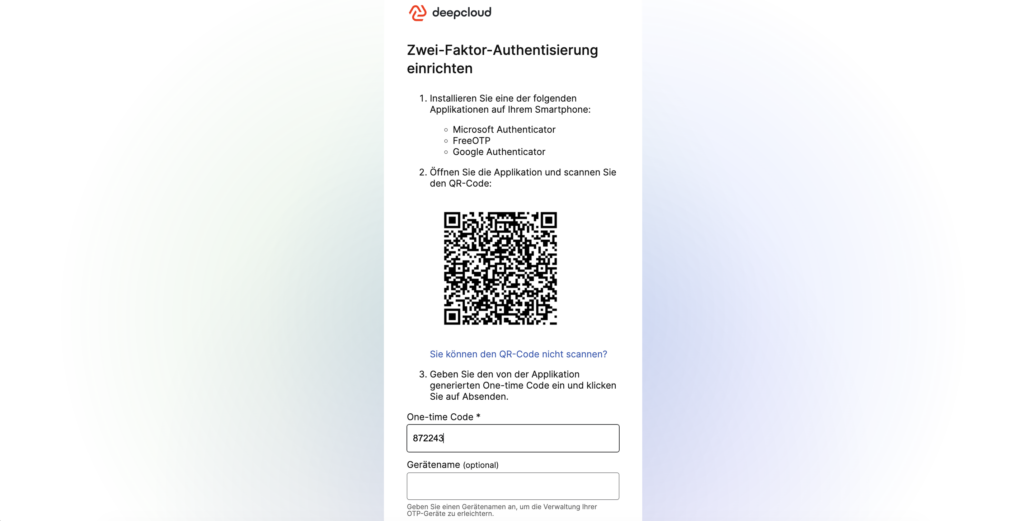
6. Log in with your password and one-time code.
7. Accept the portal invitation.
Once activation is complete, you will be taken directly to the portal.
Set Up Two-Factor Authentication in Your Profile
Two-factor authentication can be enabled in your profile.
- Sign in to DeepCloud.
- Click on your user account in the upper-right corner.
- Select ” My Profile.”
- Open the Security Settings tab.
- Click ” Enable” next to ” Two-Factor Authentication.”
- Open the Authenticator app on your smartphone.
- Use the app to scan the QR code shown.
- Follow the remaining instructions to complete the setup.
Once activation is complete, two-factor authentication will appear as ” Enabled ” in the security settings.
Sign In with Two-Factor Authentication
The next time you log in:
- Enter your email address and password as usual.
- Open your Authenticator app.
- Enter the security code displayed there.
The security code is valid only for a limited time. If it is not accepted, please wait for a new code and try again.
If the setup doesn’t work
Check the following points:
- The date and time on your smartphone are set automatically.
- The Authenticator app is allowed to access the camera.
- The entire QR code is visible when scanned.
- Use the security code currently displayed.
If you no longer have access to your smartphone or your Authenticator app, please contact Support (support@deepcloud.swiss) or your organisation’s designated administrator.
If you need further support, DeepCloud Support is happy to help.
Did this answer your question?
Related articles
Where can I reset or change my password?
You can change your password in your account settings under “Security Settings” next to “Password.” If you have forgotten your password, you can easily ...
New or Lost Cell Phone (DeepPortal)
Getting a new smartphone or losing your device affects two-factor authentication (2FA) for your DeepCloud account. Please follow these steps. No access to the old device If you no ...